Some links on PCFix411 may earn a commission from GearReady, software partners, or Amazon Associates at no extra cost to you.
A slow computer does not automatically mean you need a new one. In many cases, one or two targeted upgrades can extend a PC’s useful life for years. The key is diagnosing the real bottleneck instead of buying parts at random.
This guide ranks the upgrades that usually provide the biggest practical improvement before you spend money on a replacement system.
1. Replace a Mechanical Hard Drive With an SSD
If the computer still boots from a mechanical hard drive, an SSD is usually the highest-impact upgrade. Windows startup, application launches, updates and file operations all become dramatically more responsive.
For newer systems, NVMe is generally the preferred option when the motherboard supports it. Older machines can still gain a major improvement from a 2.5-inch SATA SSD. Before buying, verify the storage interface, M.2 size and PCIe generation. Our SSD buying guide explains those compatibility checks in detail.
2. Add RAM When Memory Is the Bottleneck
Insufficient RAM causes Windows to rely more heavily on the storage drive for temporary data. That can make multitasking feel sluggish even when the processor is adequate.
- 8 GB: still workable for basic browsing and light office use, but increasingly restrictive.
- 16 GB: the practical target for most Windows 11 users.
- 32 GB: useful for heavier multitasking, virtual machines, content creation, large projects and some modern games.
- 64 GB or more: primarily for specialized workloads.
Open Task Manager while doing your normal work. If memory usage is frequently near capacity and the system begins paging heavily, more RAM may help. If you are deciding between memory and storage, see our SSD vs RAM comparison.
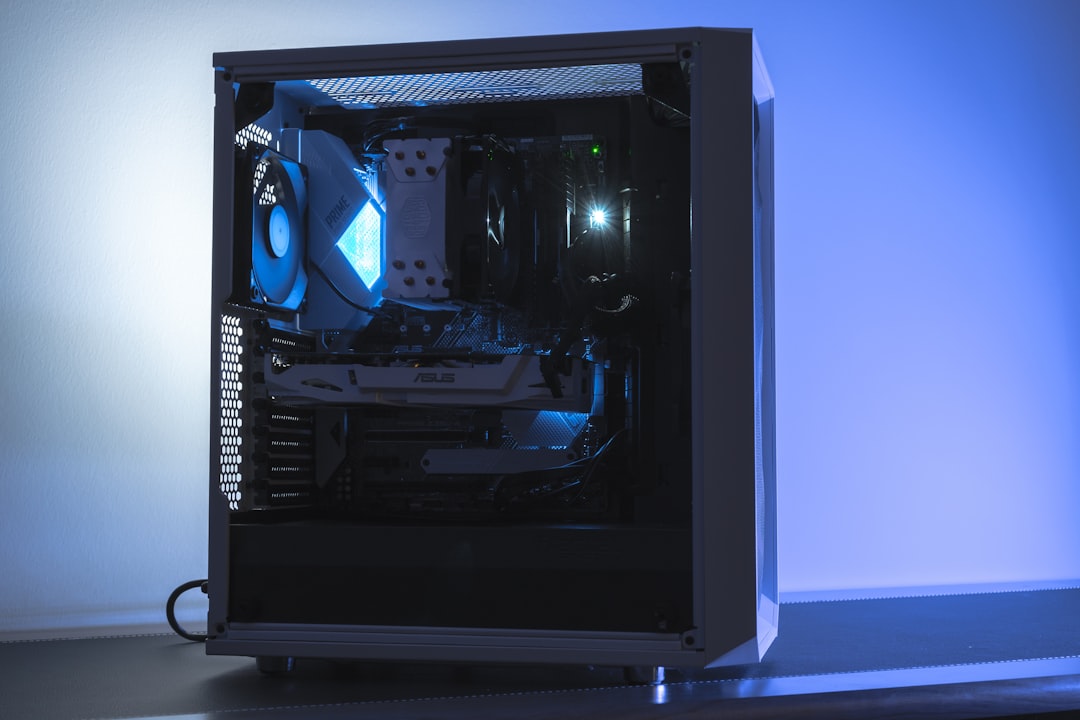
3. Upgrade the Graphics Card Only When Your Workload Needs It
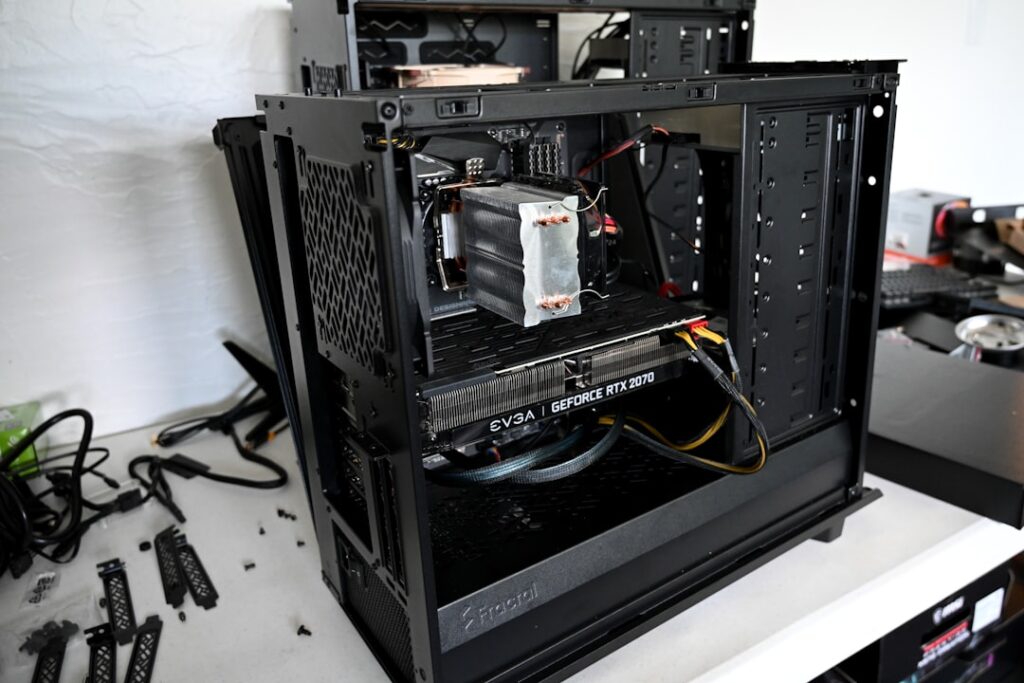
A GPU upgrade makes sense for gaming, 3D work, GPU-accelerated creative applications and some local AI workloads. It provides little benefit if your computer is slow because of a failing hard drive, low RAM or software problems.
Before buying a graphics card, check:
- power-supply wattage and required PCIe power connectors
- case length and slot clearance
- motherboard compatibility
- CPU performance, because an older processor can limit a powerful GPU
- monitor resolution and refresh rate
Buying an expensive GPU for a platform with a very old CPU can create an unbalanced system. The right upgrade is the one that addresses the limiting component.
4. Improve Cooling Before Blaming the CPU
Dust buildup, dried thermal paste, restricted airflow and weak cooling can cause processors and graphics cards to reduce clock speeds under load. A computer may feel slower over time even though the hardware itself has not changed.
Clean intake filters and fans, verify that all fans spin correctly and monitor temperatures during demanding tasks. Desktop users can often improve airflow with better fan placement or a more capable CPU cooler. Laptop owners should avoid blocking vents and should use service procedures appropriate for their model.
5. Upgrade Wi-Fi or Ethernet When the PC Feels Slow Online
Sometimes the computer is fine and the network connection is the problem. Slow downloads, video buffering and cloud-app delays can make the entire system feel underpowered.
Older desktops may benefit from a newer Wi-Fi adapter or a direct Ethernet connection. If multiple devices in the home have weak performance, the larger issue may be router placement, interference or network design rather than the PC itself. See our slow Wi-Fi troubleshooting guide before replacing hardware blindly.
6. Clean Up Windows Before Buying Parts
Hardware upgrades cannot fix every software problem. Too many startup applications, damaged system files, malware, old drivers and years of accumulated utilities can make a capable computer feel slow.
Check startup apps, uninstall software you no longer use, install Windows updates, update important device drivers and scan for malware. If the installation has become unstable or badly cluttered, a clean Windows installation can sometimes produce a larger improvement than another component.
7. Consider a CPU Upgrade Only When the Platform Supports It
CPU upgrades can be excellent on desktops, but they are more complicated than adding RAM or storage. You must confirm socket compatibility, chipset support, BIOS support, power requirements and cooling.
On many laptops the processor is soldered to the motherboard and is not realistically upgradeable. On desktops, moving to a substantially faster CPU within the existing platform can make sense if the motherboard supports it and the total cost is reasonable.
8. Replace the Power Supply When Reliability Is the Concern
Aging or low-quality power supplies can cause instability, shutdowns and upgrade limitations. If you plan to install a stronger GPU or other high-draw hardware, confirm that the PSU provides enough continuous wattage and the correct connectors.
Do not treat a power supply as a performance upgrade by itself. It is an infrastructure upgrade that can improve reliability and make other upgrades possible.
9. Add Faster External Storage for Backup and Large Files
If the internal drive is already fast but storage space is tight, external SSDs can be useful for project files, media libraries and backups. USB 3.x and USB-C interfaces can provide strong real-world performance when the computer and enclosure both support the required standard.
External storage is especially useful when a laptop has no second internal drive slot.
10. Improve the Parts You Touch Every Day
Not every upgrade needs to increase benchmark performance. A better monitor, keyboard, mouse, webcam, microphone or docking setup can make an otherwise adequate computer much more productive.
These upgrades should come after you solve real system bottlenecks, but they can improve daily comfort and efficiency more than a small processor speed increase.
When You Should Stop Upgrading and Buy a New PC
Upgrades stop making financial sense when several core components are outdated at the same time. A replacement becomes more attractive when:
- the CPU cannot meet your workload requirements
- the motherboard blocks meaningful processor, RAM or storage upgrades
- the system does not meet Windows 11 requirements and your security-support path is limited
- the battery, display, keyboard and motherboard of a laptop all need work
- you need modern ports, hardware acceleration or platform features the old system cannot provide
- the combined upgrade cost approaches the price of a substantially better replacement
PCFix411 Upgrade Order
- Diagnose the actual bottleneck.
- Fix software and thermal problems first.
- Upgrade from HDD to SSD if necessary.
- Add RAM if memory pressure is high.
- Improve networking if online performance is the problem.
- Upgrade GPU or CPU only when the workload justifies it.
- Compare total upgrade cost with the price and capabilities of a replacement PC.
Bottom Line
The best PC upgrade is not the newest or most expensive part. It is the component that removes the bottleneck you actually have. For many aging computers, an SSD, enough RAM and a clean Windows environment can restore excellent everyday performance. If the processor, motherboard and platform limitations are all holding you back, that is when a new computer becomes the smarter investment.