Some links on PCFix411 may earn a commission from GearReady, software partners, or Amazon Associates at no extra cost to you.
Replacing a hard drive with a solid-state drive is still one of the most noticeable upgrades you can make to a PC. The challenge is that SSD shopping has become more confusing: 2.5-inch SATA drives, M.2 SATA drives, NVMe drives, PCIe 3.0, 4.0 and 5.0 models, different capacities, endurance ratings and motherboard limitations can make products that look similar behave very differently.
This guide focuses on the decisions that actually matter so you can buy an SSD that fits your computer, workload and budget without paying for performance your system cannot use.
Start With Compatibility, Not Speed
Before comparing benchmark numbers, identify which storage interfaces your computer supports. A very fast drive is useless if the motherboard does not have the correct connector or protocol.
- 2.5-inch SATA SSD: connects with standard SATA data and power cables. This is the safest upgrade for many older desktops and laptops.
- M.2 SATA SSD: uses the compact M.2 shape but still communicates over SATA. It is not the same as NVMe.
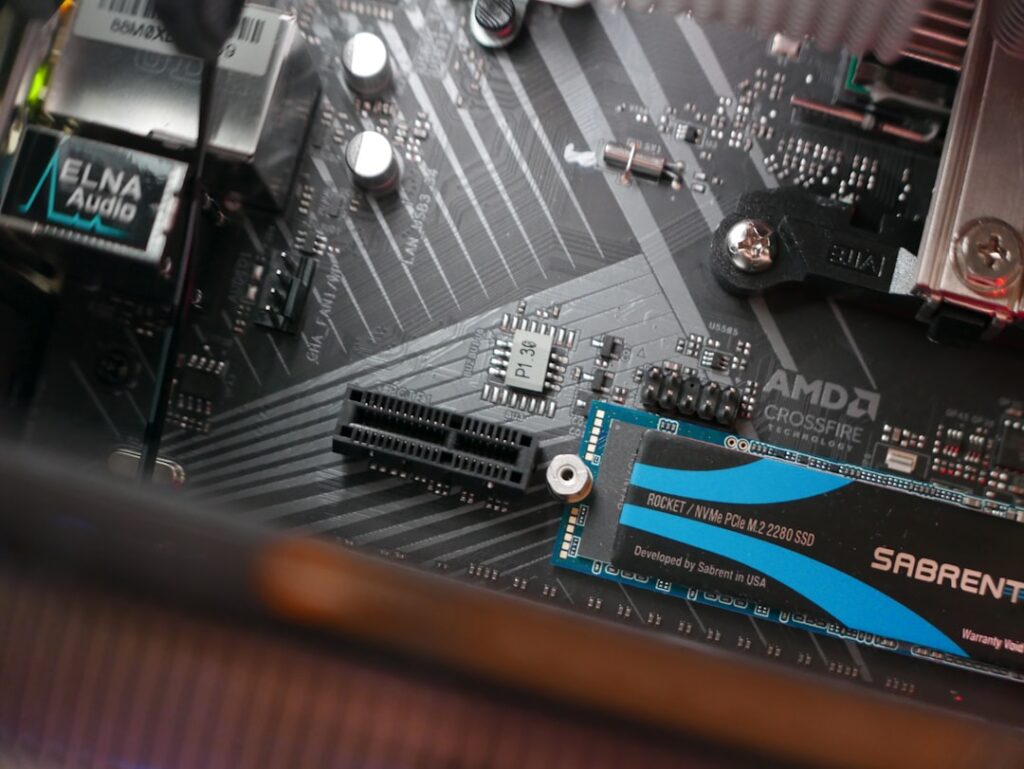
- M.2 NVMe SSD: connects through PCI Express and usually offers much higher sequential speeds and lower latency.
- PCIe add-in SSD: less common for everyday upgrades, but useful on desktops that lack an M.2 slot and have a compatible PCIe slot.
Check your motherboard or laptop manual for supported M.2 keying, drive length and PCIe generation. The most common M.2 SSD size is 2280, meaning 22 mm wide and 80 mm long, but compact systems may use shorter drives.
SATA vs NVMe: Which One Should You Buy?
A SATA SSD is dramatically faster than a mechanical hard drive for Windows startup, application launches and everyday responsiveness. NVMe adds substantially more bandwidth, especially for large file transfers, content creation, virtual machines and heavier workloads.
For an older PC that only supports SATA, a good SATA SSD remains an excellent upgrade. If your computer supports NVMe and the price difference is modest, NVMe is usually the better new purchase because it offers more performance headroom and avoids SATA’s roughly 6 Gb/s interface ceiling.
If you are deciding between storage and memory upgrades, see our guide to SSD vs RAM upgrades for an older PC. The right answer depends on whether your system is waiting on storage, running out of memory, or both.

Do PCIe Generations Matter?
NVMe drives may be advertised as PCIe 3.0, 4.0 or 5.0. Each newer generation can provide more bandwidth, but the practical benefit depends on the computer and workload.
- PCIe 3.0 NVMe: still fast for general computing, gaming and most productivity work.
- PCIe 4.0 NVMe: a strong mainstream choice for newer PCs, creators and power users.
- PCIe 5.0 NVMe: useful for workloads that can exploit very high throughput, but often costs more and can run hotter.
PCIe is generally backward compatible. A PCIe 4.0 SSD can often operate in a PCIe 3.0 M.2 slot, but it will run at the slower interface speed. That means buying a premium drive does not automatically make an older PC faster.
How Much SSD Capacity Do You Need?
Capacity affects both convenience and long-term usefulness. Windows, applications, games, project files and updates can consume space faster than expected.
| Capacity | Best Fit | Watch Out For |
|---|---|---|
| 500 GB | Basic Windows PC, office use, light applications | Can fill quickly with games or media |
| 1 TB | Best balance for most users | Usually the practical starting point for a new primary drive |
| 2 TB | Gaming, photo/video libraries, heavier workloads | Higher upfront cost |
| 4 TB+ | Large game libraries, creator workloads, consolidated storage | Price per drive becomes significant |
For many users, 1 TB is the current sweet spot. If you regularly work with video, virtual machines, large game libraries or local AI models, 2 TB or more can prevent constant storage management.
Look Beyond the Headline Read Speed
Manufacturers emphasize maximum sequential read and write speeds because those numbers are easy to market. They do not tell the entire story. Everyday responsiveness also depends on random performance, controller quality, NAND type, cache behavior, firmware and thermal conditions.
A drive advertised at an extremely high sequential speed may not feel dramatically faster than a well-designed mainstream NVMe drive when opening a browser or launching a small application. For ordinary users, reliability, capacity and price are often more important than chasing the highest benchmark.
TLC, QLC and Why NAND Type Matters
Consumer SSDs commonly use TLC or QLC NAND. TLC stores fewer bits per cell and generally offers stronger sustained performance and endurance. QLC stores more bits per cell, helping manufacturers deliver higher capacity at lower cost, but sustained write performance may drop more sharply after the cache fills.
QLC is not automatically bad. It can be perfectly reasonable for gaming libraries, general storage and read-heavy workloads. TLC is usually preferable for a primary workstation drive, frequent large writes, heavier content creation or users who want more endurance margin.
DRAM and HMB
Some SSDs include dedicated DRAM while others are DRAM-less. Modern NVMe drives may use Host Memory Buffer, or HMB, to borrow a small amount of system RAM for mapping data. A well-designed DRAM-less NVMe drive can perform very well for mainstream use, so DRAM should not be treated as a single pass-or-fail feature.
For sustained professional workloads, large transfers and heavier multitasking, drives with stronger controllers, dedicated cache resources and consistent sustained performance remain attractive.
Check Endurance and Warranty
SSD endurance is often listed as TBW, or terabytes written. The number estimates how much data can be written during the warranty period. Most normal home users will never approach the endurance limit of a reputable modern SSD, but TBW becomes more relevant for video editing, scratch disks, databases, virtual machines and other write-heavy tasks.
Compare warranty length as well. A five-year warranty from an established manufacturer is a useful confidence signal, although warranty terms vary by model and region.
Cooling: Does an NVMe SSD Need a Heatsink?
Faster NVMe drives can generate enough heat to reduce performance when temperatures rise. Many desktop motherboards include M.2 heatsinks. Some SSDs are also sold with integrated heatsinks.
For PCIe 3.0 and many efficient PCIe 4.0 drives, airflow and the motherboard’s basic M.2 cover may be enough. High-performance PCIe 4.0 and especially PCIe 5.0 drives deserve more attention to cooling. In laptops, use only cooling solutions that physically fit the chassis.
Laptop Owners: Check Physical Clearance
Laptops may impose stricter limitations than desktops. Some support only single-sided M.2 drives, specific lengths, one PCIe generation, or a limited number of storage slots. Thin laptops may also lack room for SSDs with large heatsinks.
Before opening the system, review the service manual and verify whether replacing the drive affects any manufacturer service terms. Back up important files before cloning or reinstalling Windows.
Should You Clone Windows or Start Fresh?
Cloning moves the existing Windows installation, applications and files to the new SSD. It is convenient when the current installation is healthy. A clean installation takes longer to rebuild but can eliminate years of accumulated software, drivers and configuration problems.
If the old system is unstable, infected, badly cluttered or showing file-system errors, a clean installation is often the better long-term choice. If Windows is healthy and you simply need more storage or faster hardware, cloning can save time.
PCFix411 SSD Buying Checklist
- Confirm whether the computer supports SATA, M.2 SATA, NVMe or multiple options.
- Verify the M.2 drive length and key type.
- Check the supported PCIe generation.
- Choose enough capacity for at least the next few years.
- Prefer a reputable model with a clear warranty and endurance rating.
- Match NAND, sustained performance and cooling to your workload.
- Do not overpay for benchmark speed your motherboard cannot use.
- Back up your data before replacing or cloning the existing drive.
Bottom Line
For most newer PCs, a 1 TB or 2 TB PCIe 4.0 NVMe SSD from a reputable manufacturer is the practical all-around choice. Older systems can still gain a huge responsiveness improvement from a quality SATA SSD. Compatibility comes first; capacity, reliability and workload come next; maximum benchmark speed should be farther down the list.
PCFix411 will continue building this storage cluster with upgrade comparisons, cloning guidance, troubleshooting and practical buying advice so you can improve a computer without wasting money on parts it cannot fully use.