Some links on PCFix411 may earn a commission from GearReady, software partners, or Amazon Associates at no extra cost to you.
When a PC starts crashing, slowing down or refusing to boot, the expensive question is not always how to fix it. The better question is whether the machine is still worth fixing at all.
A good repair decision looks at the specific fault, the computer’s age, upgrade options, parts availability, reliability history, Windows 11 compatibility and the cost of getting back to a stable system. Replacing a perfectly repairable PC wastes money. Repeatedly repairing an obsolete or unreliable machine can waste even more.
Quick Answer
Repair or upgrade when the problem is isolated, the machine still meets your needs and the repair restores useful life at a reasonable cost. Replace when several major components are failing, the system cannot support the software or security requirements you need, or the repair bill approaches the value of a meaningfully better replacement.
1. Diagnose the Problem Before Pricing the Solution
Do not decide to replace a computer because it is slow. Slow performance can come from a full SSD, too little RAM, malware, overheating, background software, a failing drive or an overloaded browser.
Likewise, a PC that will not start does not automatically need a motherboard. Begin with PCFix411’s PC Won’t Boot Diagnostic Checklist so you know whether the fault is power, storage, memory, display, Windows or another component.
2. Separate Software Problems From Hardware Problems
Software problems are often cheaper to resolve because the physical machine may still be healthy. Driver conflicts, corrupted Windows files, failed updates and unwanted software can create symptoms that look like failing hardware.
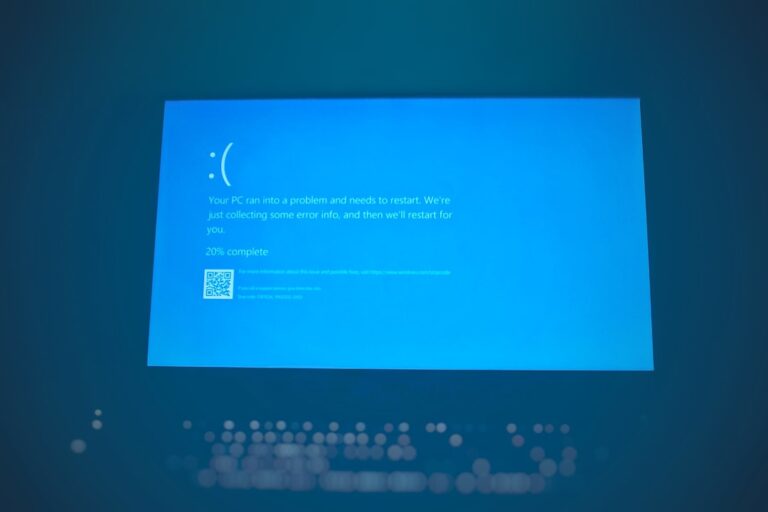
If Windows became unstable after a driver change, use the Windows 11 Driver Problems guide. If the system is crashing with a stop code, capture the evidence first rather than guessing. PCFix411’s SYSTEM_SERVICE_EXCEPTION troubleshooting guide shows the controlled approach.
3. Consider the Computer’s Real Age, Not Just the Purchase Date
Age matters because older hardware may have limited parts availability, weaker performance per watt and fewer upgrade paths. But age alone is not enough. A well-built desktop with a replaceable SSD, RAM and graphics card can remain useful longer than a thin laptop with soldered memory and a damaged motherboard.
Ask what the machine can still do after repair. If it can comfortably run the applications you need for several more years, repair may be sensible.
4. Check Windows 11 Compatibility and Support Needs
If the PC cannot meet the operating-system or security requirements your work depends on, a hardware repair may not solve the larger problem. A machine that technically works but cannot run a supported OS or required business software may be approaching replacement time.
For an older but otherwise healthy system, compare the upgrade path before replacing it. PCFix411’s Best PC Upgrades Before Buying a New Computer covers the highest-impact upgrade categories.

5. SSD Failure Is Usually More Repairable Than Motherboard Failure
A failed SSD is inconvenient, but in many desktops and laptops it is a replaceable component. If the rest of the computer is healthy, replacing the drive and restoring Windows can be far cheaper than replacing the entire PC.
Before buying a drive, confirm the form factor and interface. PCFix411’s How to Choose an SSD for Your PC covers SATA, NVMe, M.2 compatibility and capacity planning.
If important data is still on a failing drive, stop unnecessary writes and make data recovery the priority before reinstalling Windows.
6. RAM Problems Are Often Worth Fixing
Replaceable RAM is one of the easier hardware faults to address. A bad DIMM can cause crashes, failed boots and corrupted data, while insufficient memory can make an otherwise healthy PC feel much slower than it should.
Use How Much RAM Does Windows 11 Really Need in 2026? to separate a true capacity problem from a repair problem.
7. Power Supplies Are Usually Repairable at the System Level
On a standard desktop, a failed power supply can often be replaced without replacing the entire computer. The important part is choosing a quality unit with the correct wattage, connectors and physical size.
A laptop power problem is different. The fault could be the charger, USB-C power delivery, charging jack, battery or motherboard power circuitry. Diagnose before ordering parts.
8. Motherboard Repairs Need More Scrutiny
A motherboard replacement can be economical on a newer premium laptop or business desktop, but it can be hard to justify on a low-cost or very old machine. Motherboard replacement may also require a new Windows activation path, firmware setup or compatibility checks.
Compare the complete installed repair cost with the price of a substantially better replacement, not just with the original purchase price.
9. Laptop Screen and Battery Repairs Can Still Make Sense
A cracked display or worn battery does not mean the entire laptop is obsolete. If the laptop is otherwise fast, reliable and supported, replacing one damaged component can extend its life significantly.
Before ordering a screen, confirm the exact panel model, connector, resolution, refresh rate and touch capability. Before replacing a battery, confirm the correct part number and follow manufacturer safety instructions.
10. Evaluate Repairability
Some computers are designed to be serviced. Others use soldered RAM, soldered storage, glued batteries or highly integrated boards. Repairability changes the economics.
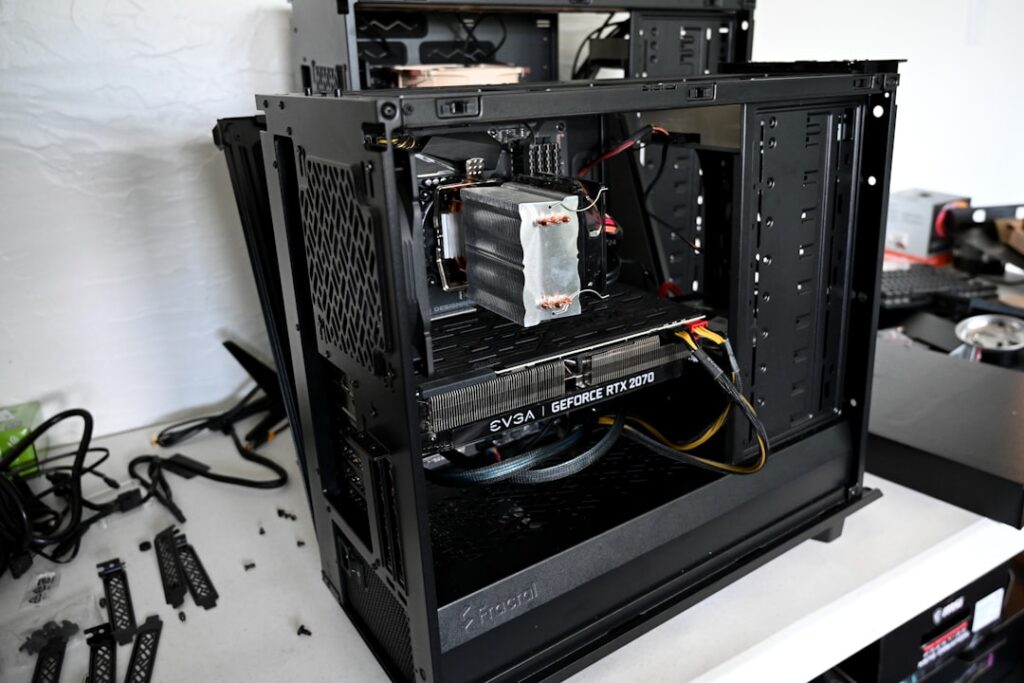
A standard desktop usually provides the best repair path because the power supply, storage, memory, graphics card and often CPU can be replaced individually. Mini PCs and thin laptops may have fewer replaceable parts.
11. One Repair Is Different From a Pattern of Repairs
A single failed SSD on an otherwise reliable PC is very different from a machine that has already needed a battery, fan, keyboard and charging-port repair in the same year.
Repeated failures create labor cost, downtime and uncertainty. Reliability history should be part of the decision even if each individual repair looks affordable.
12. Compare Downtime, Not Just Parts Cost
For a business PC, a three-day repair can cost more in lost productivity than the hardware itself. If the computer runs billing, customer records, design software or other revenue-related work, include downtime and migration time in the decision.
A spare or secondary PC changes the equation because you can tolerate a slower repair process without interrupting work.
13. Back Up Before Major Repair Work
If Windows still starts, back up important files before changing storage, firmware, partitions or major hardware. A repair can expose a second hidden problem or require a clean Windows installation.
Use PCFix411’s Windows 11 Backup Guide to build a safer recovery plan before you begin.
14. Ask Whether an Upgrade Solves the Real Complaint
A computer may not be broken at all. It may simply be underspecified for current use. Moving from a hard drive to an SSD, adding RAM or improving Wi-Fi can transform the experience without replacing the entire PC.
PCFix411’s SSD vs RAM Upgrade comparison helps identify which bottleneck matters more.
15. Do Not Overspend Upgrading a Dead-End Platform
Upgrades make sense when the platform has useful life left. Installing expensive memory, storage and a graphics card into a very old machine can become a form of sunk-cost thinking if the CPU, motherboard and operating-system support are already limiting you.
Price the complete upgrade plan before buying the first part.
16. Repair Is Usually Strongest When the Fault Is Isolated
Examples of repair-friendly situations include a healthy desktop with one failed SSD, a laptop with a worn battery, a desktop with a failed power supply, a machine with one bad RAM module or a newer laptop with a damaged but replaceable screen.
These repairs target a clear fault while preserving a system that still delivers useful performance.
17. Replacement Is Stronger When the Problems Stack Up
Replacement becomes more attractive when the machine combines several disadvantages: unsupported hardware, a failing battery, damaged chassis, limited soldered memory, a nearly full small SSD, poor performance and a history of instability.
Fixing one item may still leave the other limitations in place.
18. New PC Pricing Must Be Compared to Equivalent Capability
Do not compare a repair bill for a capable workstation with the cheapest laptop on sale. Compare against a replacement that actually meets the same workload, storage, memory, display and connectivity needs.
If you do replace the system, use PCFix411’s New Windows 11 PC Setup Checklist so the new machine starts with updates, backups and security configured properly.
19. Watch for Repair Quotes That Do Not Identify the Fault
A useful repair estimate should explain what failed, what part or service is proposed and what happens if the repair does not solve the problem. Be cautious with vague recommendations to replace multiple parts without diagnostic evidence.
For data-critical systems, ask how the shop protects your files and whether storage will be erased during service.
20. DIY Repair Has a Risk Cost Too
A simple SSD or RAM upgrade can be approachable on serviceable hardware. Board-level repair, glued batteries, high-voltage power supplies and fragile display assemblies are different. If a mistake can destroy a working motherboard or create a battery hazard, professional service may be cheaper than learning on the only machine you own.
Repair, Upgrade or Replace Decision Table
| Situation | Best Starting Direction |
|---|---|
| One failed SSD, system otherwise healthy | Repair |
| Not enough RAM but memory is upgradeable | Upgrade |
| Desktop power supply failure | Repair |
| Newer laptop with worn battery | Repair |
| Very old system with multiple failing parts | Replace |
| Unsupported platform plus poor performance | Replace |
| Slow PC with hard drive and low RAM | Measure bottleneck, then upgrade |
| Repeated repairs and growing downtime | Replacement becomes stronger |
Questions to Ask Before Spending Money
- What exactly failed?
- Is the rest of the computer healthy?
- Can the failed part be replaced independently?
- Will the repaired PC still support the software I need?
- How much useful life will the repair realistically add?
- How much downtime will the repair create?
- Is my data backed up?
- Would a targeted upgrade solve the real problem?
- What would an equivalent replacement actually cost?
- Am I repairing a good computer or repeatedly rescuing an obsolete one?
Bottom Line
Repair the computer when the failure is isolated and the platform still has useful life. Upgrade it when performance is the problem and the bottleneck is replaceable. Replace it when several limitations stack together or the machine no longer supports the reliability, security or software requirements you need. The best decision comes from diagnosing first and comparing the total outcome, not from reacting to one scary symptom.