Some links on PCFix411 may earn a commission from GearReady, software partners, or Amazon Associates at no extra cost to you.
If an older PC feels slow, two of the most common upgrade recommendations are more memory and a faster solid-state drive. Both can help, but they solve different bottlenecks. The best first upgrade depends on what the computer is doing when it slows down.
The short version: if the PC still uses a mechanical hard drive, an SSD is usually the most noticeable everyday upgrade. If the PC already has an SSD but runs out of memory while multitasking, adding RAM usually delivers the bigger improvement.
SSD vs RAM: what each upgrade actually changes
RAM is the short-term working memory your computer uses while programs are open. More RAM helps Windows keep more applications, browser tabs and active data available without constantly moving information back to storage.
An SSD stores Windows, applications and files. Replacing an old mechanical hard drive with an SSD can dramatically reduce boot time, application launch time, file-loading delays and the sluggish feeling caused by slow storage.
Choose an SSD first if your PC still has a hard drive
A traditional hard disk drive has moving parts and much higher access latency than an SSD. On an older Windows PC, that difference affects nearly everything you do: starting Windows, opening a browser, launching Office applications, loading updates and searching files.
Typical signs that storage is the main bottleneck include:
- Windows takes a long time to reach the desktop.
- Programs open slowly even when few apps are running.
- The system becomes unresponsive during updates or file scans.
- Disk activity stays near 100% in Task Manager during normal use.
- You hear constant mechanical drive activity from an older hard drive.
If that describes your computer, moving Windows to an SSD often feels like a larger improvement than adding memory.
Choose RAM first if the PC already has an SSD
Once storage is reasonably fast, memory shortages become easier to notice. Windows can use the page file on the SSD when RAM fills up, but that is still slower than keeping active data in memory.
RAM is more likely to be the bottleneck when:
- You keep many browser tabs open.
- You use Microsoft 365, video conferencing, messaging and browsers at the same time.
- The PC pauses when switching between applications.
- Memory usage frequently approaches 80–100% in Task Manager.
- You edit large photos, video or audio projects.
- You use virtual machines, development tools or other memory-heavy software.
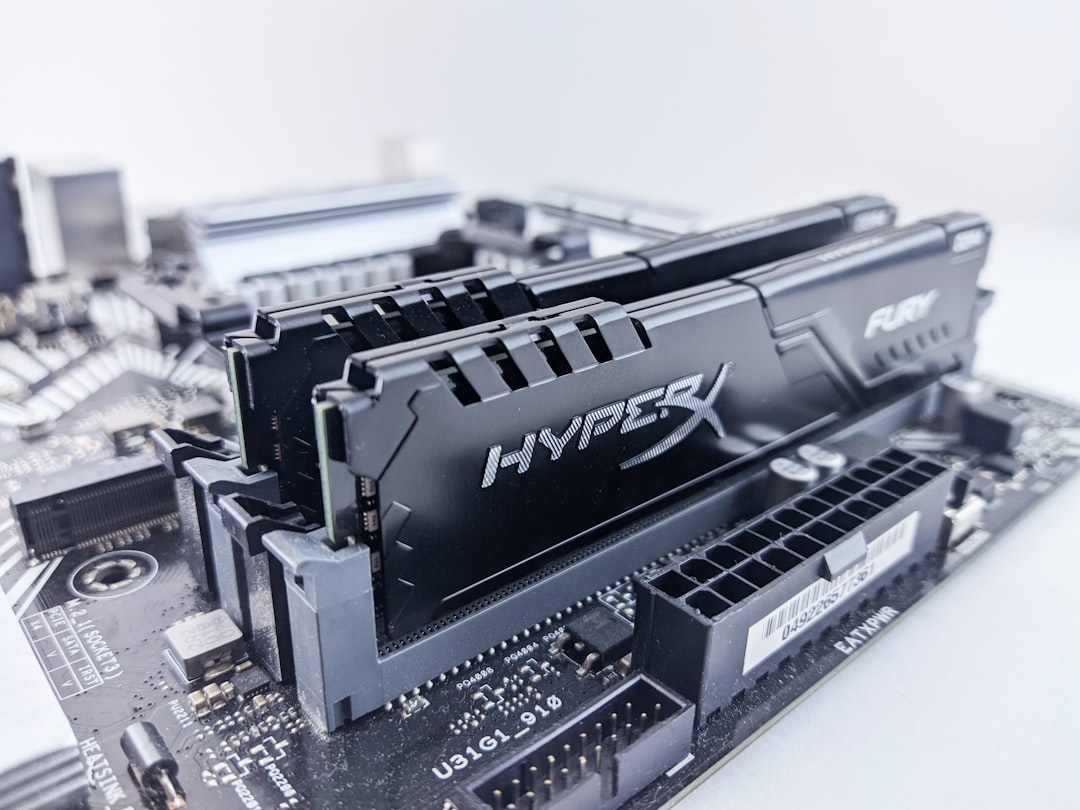
How much RAM is enough for an older Windows PC?
For light use, 8 GB can still handle basic web browsing, email and office work, but it leaves less breathing room for modern browsers and multitasking. For most everyday Windows 11 systems, 16 GB is a more comfortable target. Users working with heavier creative software, virtual machines or large data sets may benefit from 32 GB or more.
The important question is not simply the total amount of RAM. It is whether your current workload is actually exhausting the memory you already have.
How to check whether you need RAM or storage first
Open Task Manager and use the Performance tab while the computer is doing the work that normally feels slow.
Check Memory
If memory usage is consistently near the top of the graph and the system becomes sluggish as more applications open, RAM is a strong candidate.
Check Disk
If disk activity is constantly saturated while the computer is waiting on simple tasks, storage may be the problem. This is especially common on systems that still boot from a mechanical hard drive.
Check CPU too
Do not assume RAM or storage is always the answer. If CPU usage is pinned near 100% during your normal workload, an SSD or RAM upgrade may improve responsiveness but will not turn an old low-end processor into a modern high-performance CPU.
Our Windows 11 performance guide covers the broader troubleshooting steps to check before spending money.
What if the PC has only 4 GB of RAM and a hard drive?
That is the classic case where both upgrades matter. If budget forces you to choose only one, replacing the hard drive with an SSD usually creates the most dramatic improvement in startup and everyday responsiveness. Moving from 4 GB to 8 GB or 16 GB should be the next priority if the system supports it.
For many older laptops and desktops, the combination of an SSD and 16 GB of RAM can extend useful life considerably—provided the processor, motherboard and operating-system support are still adequate for what you need.
SATA SSD vs NVMe SSD: does it matter?
If your older PC only supports 2.5-inch SATA storage, do not dismiss the upgrade. The jump from a mechanical hard drive to a SATA SSD is still substantial for normal desktop use.
NVMe drives can deliver much higher sequential speeds, but the real-world difference between SATA SSD and NVMe is often smaller for basic browsing, office work and general Windows use than the difference between any SSD and a mechanical hard drive.
Check the computer or motherboard documentation before buying an M.2 or NVMe drive. Physical fit does not always guarantee electrical or firmware compatibility.
Before buying RAM, verify compatibility
Memory upgrades can fail when the wrong generation, speed, form factor or capacity is purchased. Before ordering RAM, confirm:
- DDR generation supported by the motherboard or laptop.
- Desktop DIMM vs laptop SO-DIMM form factor.
- Maximum supported capacity.
- Number of available memory slots.
- Whether existing memory is soldered.
- Manufacturer guidance for compatible configurations.
It is also usually better to install matched memory modules when the system supports dual-channel operation.
Before buying an SSD, verify compatibility and backup
Check whether the computer uses a 2.5-inch SATA drive, M.2 SATA, M.2 NVMe or another storage format. Make a verified backup before cloning or replacing the system drive.
If the existing drive is already showing errors, prioritize copying important files before running intensive cloning or repair operations.
When neither upgrade is worth it
There are times when putting money into an old computer does not make sense. Replacement may be the better option when the machine has multiple failing components, cannot run a supported operating system, has a very weak processor for your workload, uses proprietary non-upgradeable hardware or requires a battery, display and storage repair at the same time.
Upgrades work best when one or two clearly identifiable bottlenecks are holding back an otherwise functional system.
Quick decision guide
- Mechanical hard drive + adequate RAM: SSD first.
- SSD + memory frequently full: RAM first.
- 4 GB RAM + mechanical hard drive: SSD first, then RAM as soon as practical.
- Slow CPU + SSD + enough RAM: neither upgrade will fully solve the problem.
- Old system with multiple failures: compare upgrade cost with replacement.
Bottom line
For most older PCs still using a mechanical hard drive, an SSD is the best first performance upgrade. For systems that already have an SSD, more RAM becomes the better investment when multitasking and memory pressure are the main problems.
Measure before you buy. Task Manager, hardware specifications and your actual workload will tell you more than a generic upgrade recommendation.
For more practical hardware guidance, browse PCFix411 Computers & Hardware and Tech Buying Guides.
Featured and in-article photography: Andrey Matveev / Unsplash.