Some links on PCFix411 may earn a commission from GearReady, software partners, or Amazon Associates at no extra cost to you.
The best home-office accessories are the ones that remove a problem you encounter repeatedly. A second monitor can reduce window switching, a dock can turn a laptop into a one-cable workstation, a better microphone can make meetings clearer, and reliable networking can eliminate interruptions that no decorative desk gadget can fix.
This guide prioritizes practical computer accessories by impact so you can improve a home office without turning it into an expensive collection of unused gear.
1. A Better Monitor
If you spend hours reading, writing, editing or working across multiple applications, the monitor is one of the highest-impact upgrades. A 27-inch 1440p display is a strong general-purpose choice because it provides more workspace than 1080p without demanding the scaling that some users need at 4K.
Creative users may prefer 4K resolution and stronger color accuracy. Gamers should also consider refresh rate and adaptive sync. Office users should prioritize comfortable size, sharp text and adjustable positioning.
2. A Second Monitor
Dual monitors are useful when you routinely compare information, keep communication apps open or work with timelines and dashboards. They are not automatically more productive for everyone, so add a second display because your workflow needs it—not because every setup photo has one.
Our upcoming Dual-Monitor Accessories guide covers monitor arms, cabling, docks and ergonomic placement.
3. Laptop Docking Station
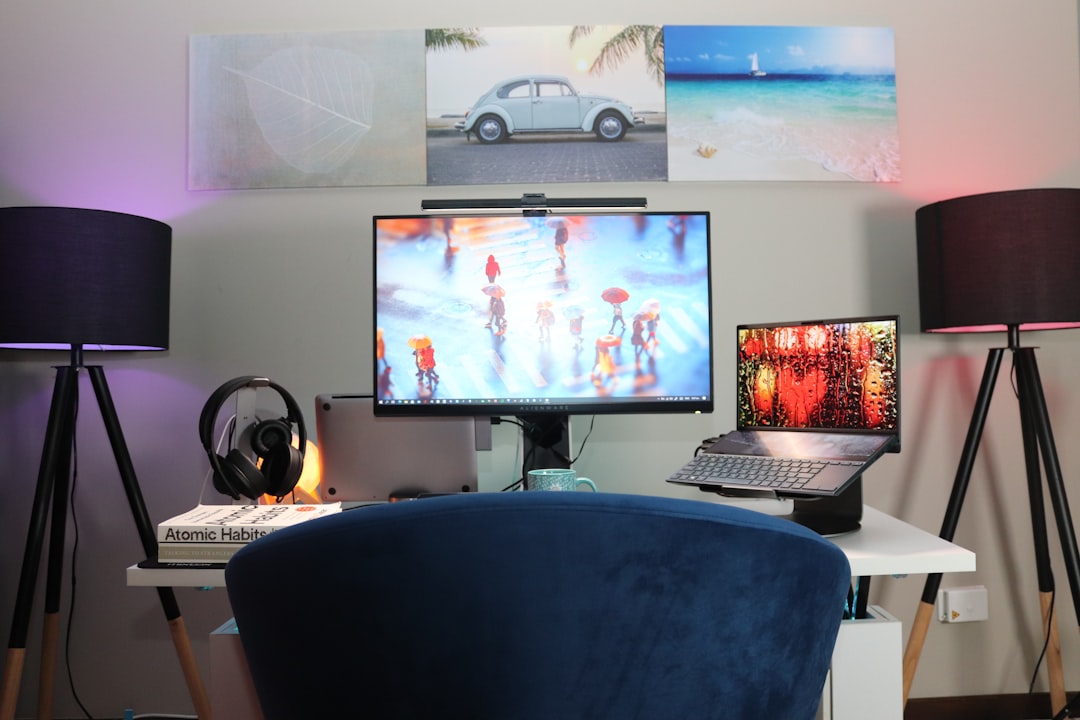
If a laptop is your primary computer, a dock can reduce a desk full of separate cables to one connection. A capable dock may handle external displays, Ethernet, USB devices, audio, storage and laptop charging.
Compatibility is more complicated than the USB-C connector suggests. Read Laptop Docking Station Buying Guide before buying one.
4. External Keyboard
A full-size external keyboard is more comfortable than a laptop keyboard for many desk-based users. Choose the layout, key feel and size that fit your work. Mechanical keyboards provide distinctive feedback but are not necessary for productivity; quiet membrane or low-profile boards can be better in shared spaces.
5. Comfortable Mouse
Hand fit, button placement and smooth tracking matter more than extreme DPI specifications for office work. Users who navigate large spreadsheets or editing timelines may benefit from horizontal scrolling and programmable buttons.
If wrist discomfort develops, experiment with posture, desk height and mouse shape rather than assuming one ‘ergonomic’ product fits everyone.
6. Webcam
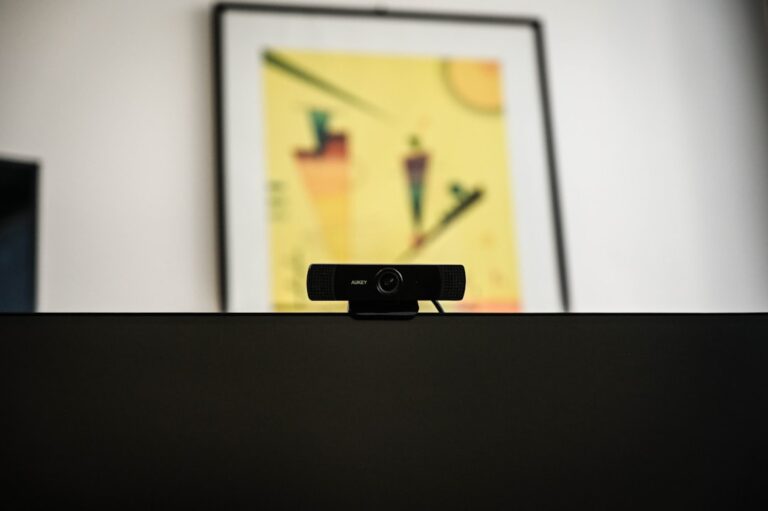
An external webcam can improve framing and picture quality for meetings and content creation. For most calls, 1080p is enough. A 4K webcam becomes more useful when you want digital cropping, higher-quality recordings or creator work.
See 1080p vs 4K Webcam. GearReady’s live Niche Computer Peripherals collection currently includes several webcam models; compare autofocus, frame rate, microphone quality and actual output resolution rather than shopping by ‘4K’ alone.
7. External Microphone or Quality Headset
Clear audio makes a bigger difference in communication quality than many users expect. A headset is simple and controls echo well. A USB microphone can sound more natural if your desk is permanent and the room is reasonably quiet.
For microphone selection, see Dynamic vs Condenser Microphone for Streaming and Home Offices.
8. Proper Lighting
Video quality improves dramatically when your face is well lit. A window can be excellent during the day, but dedicated lighting produces a consistent result. A small LED panel or ring light is more useful than buying a premium webcam and leaving the room dark.
9. Ethernet Adapter
If your laptop lacks Ethernet and your desk is near a wired network connection, a USB or USB-C Ethernet adapter can make large transfers and video meetings more reliable. Confirm whether the adapter supports Gigabit Ethernet or faster speeds if your network requires them.
10. USB Hub
A hub is useful when the computer simply lacks enough USB ports. Do not confuse a basic hub with a full docking station. A hub may add USB connections, while a dock can also handle monitors, charging and Ethernet.
11. External SSD
An external SSD is useful for project files, local backups, media libraries and transferring large data sets between computers. Match the drive and enclosure speed to the port on your computer; a premium drive cannot exceed the bandwidth of a slow USB connection.
For internal storage selection, see How to Choose an SSD for Your PC.
12. UPS Battery Backup
A UPS protects a desktop workstation from brief outages and gives you time to save work during a longer one. It can also keep a modem and router online temporarily.
Choose capacity based on actual wattage and runtime needs. High-power gaming computers require much larger UPS units than ordinary office PCs.
13. Surge Protector
For equipment that does not need battery backup, use a reputable surge protector with sufficient outlets and spacing for power adapters. A cheap power strip is not necessarily a surge protector; check the product’s specifications.
14. Monitor Arm or Adjustable Stand
A monitor arm can reclaim desk space and improve positioning, especially on dual-monitor setups. Check the monitor’s VESA mounting pattern and weight before buying an arm.
The center of the display should generally be around eye level or slightly below, with enough distance that you can read comfortably without leaning forward.
15. Laptop Stand
A stand raises a laptop display to a more comfortable height when you use an external keyboard and mouse. It can also improve airflow on some systems. Do not block the laptop’s intake or exhaust vents.
16. Cable Management
Velcro ties, reusable clips and under-desk trays can make a workstation easier to service. Avoid permanently bundling cables until the layout is proven. You should be able to replace a dock, monitor or power supply without dismantling the entire desk.
17. USB Extension or Accessible Port Hub
If the PC tower sits under a desk, a short extension or desk-mounted hub can make flash drives, security keys and temporary peripherals easier to connect without crawling behind the computer.
18. Speakers
Built-in monitor and laptop speakers are adequate for notifications and casual calls, but external speakers improve music, training videos and media. In shared homes, a good headset may be the more practical investment.
19. Headphones
Closed-back headphones reduce distractions and keep meeting audio private. Wireless models improve mobility; wired models eliminate battery management and Bluetooth latency.
20. Backup Drive
A dedicated external drive can be part of a local backup plan. Do not keep the only backup permanently connected if ransomware or electrical damage is a concern. The most important rule is redundancy: important files should exist in more than one place.
Accessory Priority by Budget
| Priority | Buy First When… |
|---|---|
| Monitor | You struggle with screen space or readability |
| Keyboard/mouse | You spend hours typing and navigating |
| Dock | You connect/disconnect a laptop from desk gear daily |
| Webcam/mic | Meetings or content are a regular part of work |
| Ethernet/networking | Wi-Fi interruptions affect work |
| UPS/backup | Data loss or power interruption would be costly |
| Storage | You are running out of space or need backups |
Avoid These Common Accessory Mistakes
- Buying a dock before checking USB-C capabilities.
- Buying 4K video gear without improving lighting.
- Adding monitors without enough display outputs.
- Buying high-speed storage for a slow port.
- Using a monitor arm that cannot safely support the display weight.
- Buying RGB or ‘gaming’ accessories for features you will never use.
- Substituting a power strip for actual surge protection.
Build the Whole Setup as a System
If you are planning the workstation from scratch, use the Complete Home-Office Technology Setup Guide. It combines the computer, displays, communications, networking, power and backup layers rather than treating each accessory as an isolated purchase.
Bottom Line
The highest-value home-office accessories solve a measurable problem. Improve your display when screen space is limiting, add a dock when cable reconnection wastes time, improve audio and lighting when calls matter, and protect data before buying decorative upgrades. A smaller number of well-chosen accessories produces a better workstation than a desk full of gadgets that do not improve the work.