Some links on PCFix411 may earn a commission from GearReady, software partners, or Amazon Associates at no extra cost to you.
A laptop docking station can turn a portable computer into a full desktop workstation with monitors, Ethernet, storage, keyboard, mouse, audio and charging connected through one cable. But USB-C docking is also one of the easiest accessory categories to buy incorrectly because the connector shape does not tell you which features the laptop actually supports.
This PCFix411 guide explains what to verify before you spend money so the dock matches your laptop, monitors and peripherals.
USB-C Is a Connector, Not a Feature Guarantee
Two laptops can have identical-looking USB-C ports and support very different capabilities. One may provide only USB data. Another may support DisplayPort video. A third may add Thunderbolt or USB4 and high-wattage charging.
Before shopping for a dock, look up the exact laptop model and determine what its USB-C or Thunderbolt ports support.
Check for DisplayPort Alt Mode
Many USB-C docks send video through DisplayPort Alt Mode. If the laptop’s USB-C port does not support video output, a normal Alt Mode dock cannot make external displays appear simply because the plug fits.
Look for a DisplayPort symbol, Thunderbolt symbol or explicit documentation from the manufacturer.
Thunderbolt vs USB-C Docking
Thunderbolt docks typically provide more bandwidth and stronger support for multiple high-resolution displays, fast storage and other peripherals. They also tend to cost more.
A standard USB-C dock can be completely adequate for office work with one or two monitors, Gigabit Ethernet and ordinary USB devices. Buy Thunderbolt because the workload needs the bandwidth or display flexibility, not simply because it is the premium label.
USB4
USB4 can provide high bandwidth and can overlap with Thunderbolt capabilities, but implementations still vary by computer and dock. Verify the laptop’s documented USB4 features, supported display configurations and power behavior rather than assuming every USB4 port is identical.
How Many Monitors Do You Need?
Decide the monitor configuration before choosing the dock. One 1080p monitor is easy to support. Two 4K displays at high refresh rates require far more bandwidth and may exceed what a particular laptop, operating system or dock can provide.
Check all four parts of the chain:
- The laptop’s GPU and port capabilities.
- The dock’s maximum supported display configuration.
- The monitor resolution and refresh rate.
- The cable specification.
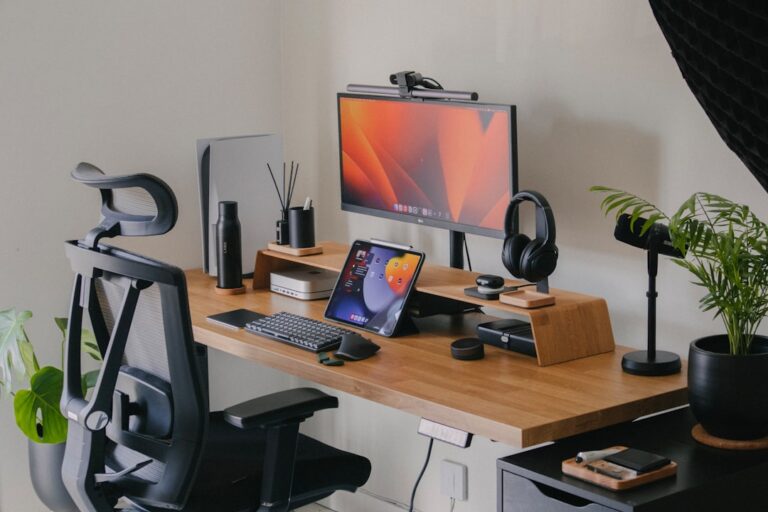
If you are planning a dual-display workstation, our Best Accessories for a Dual-Monitor Setup guide covers the rest of the desk.
HDMI vs DisplayPort Outputs
Both can work well. The important question is what resolution and refresh rate the dock supports through each port. A dock with two HDMI connectors does not automatically support two 4K displays at 60 Hz.
DisplayPort can be especially flexible for PC monitors and daisy-chaining on compatible hardware. HDMI is extremely common on TVs, projectors and office displays.
Power Delivery
Many docks can charge the laptop through the same USB-C cable used for data and video. Compare the dock’s host charging wattage with the laptop’s original power adapter.
A small ultrabook may be comfortable with 45–65 watts. Performance laptops may expect 90, 100 watts or much more. Some gaming and workstation laptops cannot receive their full operating power through USB-C at all and still require the original charger for heavy workloads.
The Power Adapter May Not Be Included
Some USB-C hubs advertise power delivery but require you to connect your own USB-C charger. Full desktop docks often include a power brick. Read the package contents before comparing prices.
Ethernet
A built-in Ethernet port is one of the most useful docking features for a permanent desk. Gigabit Ethernet is enough for many homes and offices. Faster 2.5 GbE becomes useful when your router, switch, NAS and cabling also support it.
A 2.5 GbE dock does not make an internet connection faster than the rest of the network.
USB Ports
Count the devices you actually use: keyboard, mouse, webcam, microphone, external SSD, printer, security key, capture device and charging cables. Then distinguish high-speed ports from basic USB ports.
Do not assume every port on a dock shares full bandwidth independently. Many docks divide one upstream connection across all connected devices.
Fast External Storage
If you edit video directly from an external SSD or transfer large files regularly, look carefully at the dock’s USB or Thunderbolt storage bandwidth. A fast NVMe enclosure connected through a low-speed USB port will be restricted to the slower connection.
SD and microSD Readers
Creators may benefit from integrated memory-card readers, but check their actual speed. An inexpensive card reader can become the bottleneck when importing large photo or video projects.
Audio
Some docks include a 3.5 mm headset jack or separate audio ports. This is useful when the laptop itself is closed or mounted away from the user. USB headsets and microphones can also connect through the dock, but audio professionals should consider whether the dock introduces unwanted complexity into a low-latency recording setup.
Webcams and Capture Hardware
Webcams usually work well through a quality dock, but high-resolution cameras and capture cards can consume substantial USB bandwidth. If several demanding devices share the same dock, test them under the actual workload.
For webcam selection, see 1080p vs 4K Webcam.
Windows and Driver Support
Many USB-C and Thunderbolt docks work with built-in Windows drivers, while some require firmware or driver packages for Ethernet, audio or display features. Use the dock manufacturer’s support site rather than third-party driver download pages.
DisplayLink Docks
DisplayLink technology can provide additional displays over USB using software compression. It can be useful on systems with limited native display outputs, but it is different from direct GPU video output.
DisplayLink is excellent for office productivity in many cases, but it may not be ideal for gaming, color-critical work or latency-sensitive high-frame-rate video. Verify operating-system and security-policy compatibility before using it in a managed business environment.
macOS and Multi-Monitor Limitations
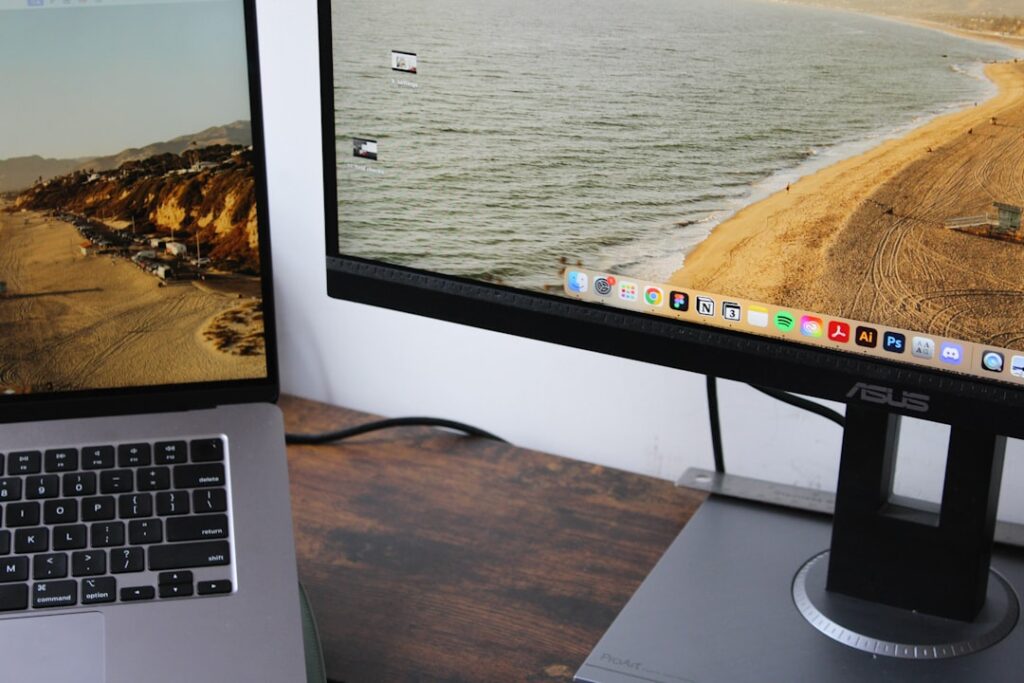
Some Mac models have native limits on the number of external displays they support regardless of how many ports appear on a dock. DisplayLink can sometimes add software-driven screens, but that does not change the computer’s native GPU output limit.
Always verify the exact Mac model, chip generation and docking technology.
Laptop Lid Open or Closed?
If you plan to run the laptop closed in clamshell mode, make sure cooling vents are not blocked and verify how the system handles sleep, external power and external displays. A vertical stand can save desk space, but airflow should come first.
Cable Quality Matters
The USB-C cable between the laptop and dock carries everything: data, video and sometimes substantial power. Use the cable supplied with the dock or a properly certified replacement with the required bandwidth and power rating.
A charge-only USB-C cable can fit perfectly and still fail to carry the video or high-speed data you expect.
Do You Need a Dock or Just a Hub?
A small USB-C hub is better when you occasionally need a few ports while traveling. A powered desktop dock makes more sense when the laptop connects to a permanent workstation every day.
| Need | USB-C Hub | Full Dock |
|---|---|---|
| Travel portability | Better | Usually bulky |
| Multiple monitors | Varies | Usually stronger |
| High laptop charging power | Often requires separate charger | Often included |
| Many USB devices | Limited | Better |
| Permanent Ethernet | Common | Common |
| High-speed storage | Model-dependent | Thunderbolt/USB4 models can excel |
Docking Station Buying Checklist
- Look up the exact laptop model.
- Confirm USB-C video, USB4 or Thunderbolt support.
- Write down the exact monitor resolutions and refresh rates you need.
- Verify the dock supports that display configuration.
- Compare host charging wattage with the laptop power adapter.
- Count USB, Ethernet, audio and card-reader needs.
- Check whether a power adapter is included.
- Confirm Windows/macOS driver and firmware support.
- Use a properly rated host cable.
- Buy for the workstation you actually have, not theoretical maximum specs.
Where a Dock Fits in the Home Office
A dock is only one layer of the workstation. Use the Complete Home-Office Technology Setup Guide to plan monitors, networking, webcam, microphone, power protection and backups around it.
Bottom Line
The right docking station can make a laptop feel like a desktop while preserving portability. The wrong dock can create monitor problems, slow storage, inadequate charging and endless cable troubleshooting. Start with the laptop’s documented port capabilities, then match displays, power, networking and peripherals to a dock that explicitly supports them.