Some links on PCFix411 may earn a commission from GearReady, software partners, or Amazon Associates at no extra cost to you.
A productive home office is more than a laptop on a table. The technology should reduce friction: your computer should be fast enough, displays should fit the work, video calls should look and sound professional, Wi-Fi should be reliable, important files should be backed up and cables should not turn the desk into a daily troubleshooting project.
This PCFix411 guide builds the setup from the essentials outward so you can spend where it matters and avoid buying accessories that do not solve a real problem.
1. Start With the Computer
Your computer determines the limits of the entire setup. For general office work, web applications, email and video meetings, a modern mainstream laptop or desktop with at least 16 GB of RAM and solid-state storage is a strong baseline. Heavier video, audio, software development, virtual machines and AI workloads justify more memory and processing power.
If you are deciding between form factors, see Laptop vs Desktop: Which Should You Buy?. A laptop is ideal when you move between locations; a desktop usually offers more performance, repairability and upgrade flexibility.
2. Choose the Right Monitor Layout
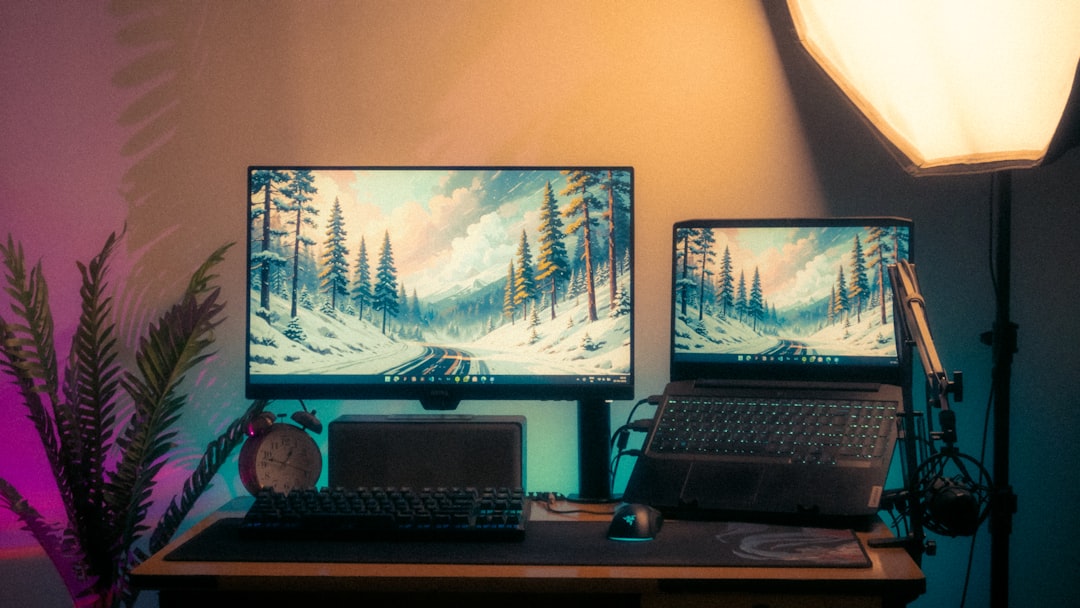
A single good monitor can be enough for focused work. A second display becomes valuable when you constantly compare documents, keep communication apps visible or work across multiple applications.
- 24-inch 1080p: inexpensive and practical for standard office work.
- 27-inch 1440p: a strong balance of workspace and sharpness.
- 27–32-inch 4K: useful for high-resolution creative work and dense information.
- Ultrawide: offers continuous horizontal workspace without a bezel in the middle.
Do not buy more resolution than your computer and eyesight can comfortably use. Windows scaling can make 4K practical, but text size and viewing distance still matter.
3. Add a Dock Only If You Need One
A laptop docking station can turn one USB-C or Thunderbolt connection into monitors, Ethernet, USB devices, audio, storage and charging. That is valuable when you carry the laptop away from the desk regularly.
Before buying, confirm that the laptop’s USB-C port supports the features you need. USB-C describes the connector shape; it does not guarantee video output, Thunderbolt, high-speed data or enough charging power.
Our Laptop Docking Station Buying Guide explains display support, USB-C, Thunderbolt, DisplayPort Alt Mode and power delivery in detail.
4. Keyboard and Mouse: Comfort Beats Flash
Your keyboard and mouse are the devices you touch for hours. Prioritize comfort, reliable wireless or wired connectivity and the layout you actually use. A full-size keyboard makes sense for heavy number entry; compact keyboards preserve desk space.
For a mouse, shape and hand fit matter more than maximum DPI. Productivity users may benefit from programmable buttons and horizontal scrolling, while gamers may prioritize low latency and sensor performance.
5. Improve Video Calls With a Real Webcam
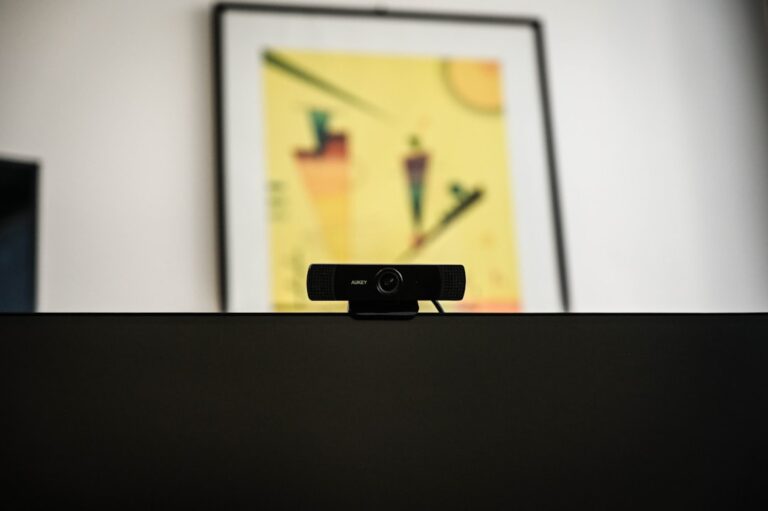
Built-in laptop webcams are convenient, but an external webcam can improve framing, low-light performance and image detail. A good 1080p webcam is enough for most meetings. A 4K model becomes useful when you want cropping flexibility, content creation or higher-quality recording.
PCFix411’s 1080p vs 4K Webcam guide explains when the extra resolution is worth paying for.
If you need a webcam or capture peripheral for a home-office or creator setup, the live GearReady Niche Computer Peripherals collection currently includes several webcam options and related capture hardware. Match the device to your actual resolution, microphone and connection needs rather than buying by headline specs alone.
6. Audio Matters More Than Most People Think
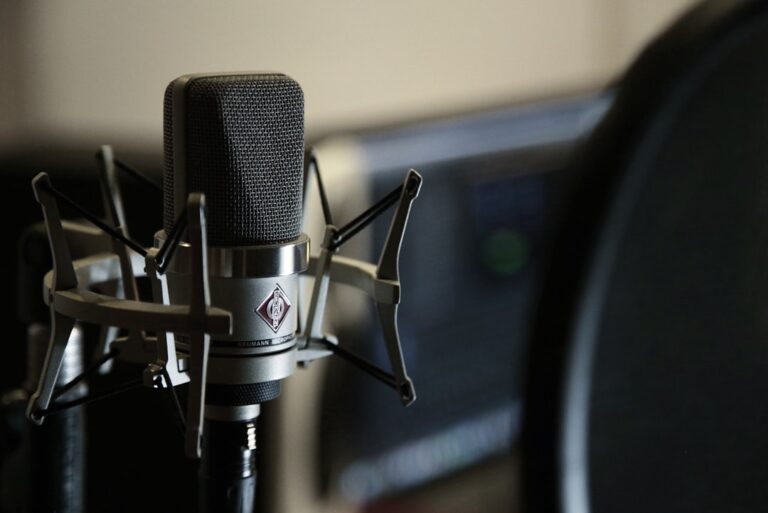
People will tolerate average video more easily than echoing, distant or distorted audio. For frequent meetings, an external USB microphone, good headset or quality speakerphone can make communication clearer.
Dynamic microphones reject more room noise when used close to the mouth. Condenser microphones are more sensitive and can sound detailed in a controlled room. See Dynamic vs Condenser Microphone for Streaming and Home Offices.
7. Fix Lighting Before Buying a More Expensive Camera
A cheap webcam in good light can look better than an expensive camera in a dark room. Face a window when possible, avoid a bright window directly behind you and use a soft front light when natural light is inconsistent.
For a permanent desk, an LED panel can provide broad controllable illumination. Ring lights are compact and convenient. Our Ring Light vs LED Panel guide compares the two.
8. Use Wired Ethernet When Reliability Is Critical
Wi-Fi is convenient, but Ethernet remains valuable for a stationary workstation, large file transfers, cloud backups and important video meetings. If the desk is close enough to the router or a network switch, wired Ethernet removes interference and signal-strength variables.
If Wi-Fi is your only practical option, solve placement and coverage problems before paying for a faster internet plan. See How to Fix Slow Wi-Fi at Home.
9. Place the Router for Coverage, Not Appearance
A router hidden in a basement corner or closed cabinet may look tidy but can weaken coverage. Place it as centrally and openly as practical, away from major obstructions and interference sources.
Large or multi-story homes may benefit from a mesh system rather than a simple extender. See Wi-Fi Extender vs Mesh Wi-Fi.
10. Protect the Workstation From Power Problems
A surge protector is useful, but a UPS adds battery backup so a desktop, monitor and networking equipment can stay online through short outages or shut down safely during longer ones.
Do not overload a UPS. Size it for the devices that truly need backup power and check the manufacturer’s watt and VA ratings.
11. Build a Backup System Before You Need It
A home office often contains business records, tax documents, client files, photos and creative work that cannot be recreated easily. Keep important data in more than one location.
A practical strategy can combine local storage with a reputable cloud backup or sync service. Sync alone is not always a complete backup because accidental deletions and ransomware can propagate. Keep at least one additional recoverable copy.
12. Keep Enough Local Storage
For most users, a 1 TB SSD is a comfortable starting point. Creators, gamers and users with large local media libraries may prefer 2 TB or more.
Before buying a drive, review How to Choose an SSD for Your PC.
13. Use a USB Hub Only When the Laptop Lacks Ports
A simple USB hub is fine when you only need more USB devices. A dock is better when you also need displays, Ethernet, laptop charging and high-speed storage. Do not pay docking-station prices just to connect a keyboard and flash drive.
14. Plan Cable Management After the Layout Works
Test the workstation before permanently routing every cable. Once the monitor positions, dock location and peripherals are stable, use cable ties, sleeves or under-desk trays to keep power and data cables organized.
Leave enough slack for adjustable monitor arms and standing desks.
15. Secure the Home Office
Use a supported version of Windows, keep updates current, enable device encryption when appropriate and use strong unique passwords with multifactor authentication. Lock the screen when leaving the room if other people have physical access.
For malware protection, see How to Remove Viruses and Malware from Windows 11.
16. Consider a Second Computer Only for a Real Need
A spare system can be useful for testing, streaming, media or business continuity, but many home offices are better served by one reliable main computer plus good backups and peripherals. Avoid multiplying devices simply because old hardware is available.
Recommended Home-Office Tiers
| Tier | Core Setup | Best For |
|---|---|---|
| Essential | PC, one monitor, keyboard/mouse, reliable Wi-Fi, headset | Basic remote work |
| Productive | 16 GB+ PC, dual monitors, webcam, better audio, dock/Ethernet | Daily professional use |
| Creator/Power | 32 GB+ PC, high-resolution displays, dedicated mic/camera, fast storage, wired network | Video, audio, development, AI and heavy multitasking |
PCFix411 Home-Office Checklist
- Choose the computer around the workload.
- Use the simplest monitor layout that improves productivity.
- Buy a dock only after verifying port capabilities.
- Prioritize comfortable keyboard and mouse ergonomics.
- Improve lighting and audio for video calls.
- Use Ethernet when reliability matters.
- Fix Wi-Fi coverage before upgrading internet speed.
- Protect important devices with proper surge or UPS equipment.
- Maintain at least one recoverable backup copy.
- Keep Windows, browsers and security tools updated.
Bottom Line
The best home-office technology setup is not the one with the most gadgets. It is the one that removes bottlenecks from your normal work. Start with a capable computer and reliable network, then add displays, audio, video, storage and docking hardware only when each addition solves a recurring problem.