Some links on PCFix411 may earn a commission from GearReady, software partners, or Amazon Associates at no extra cost to you.
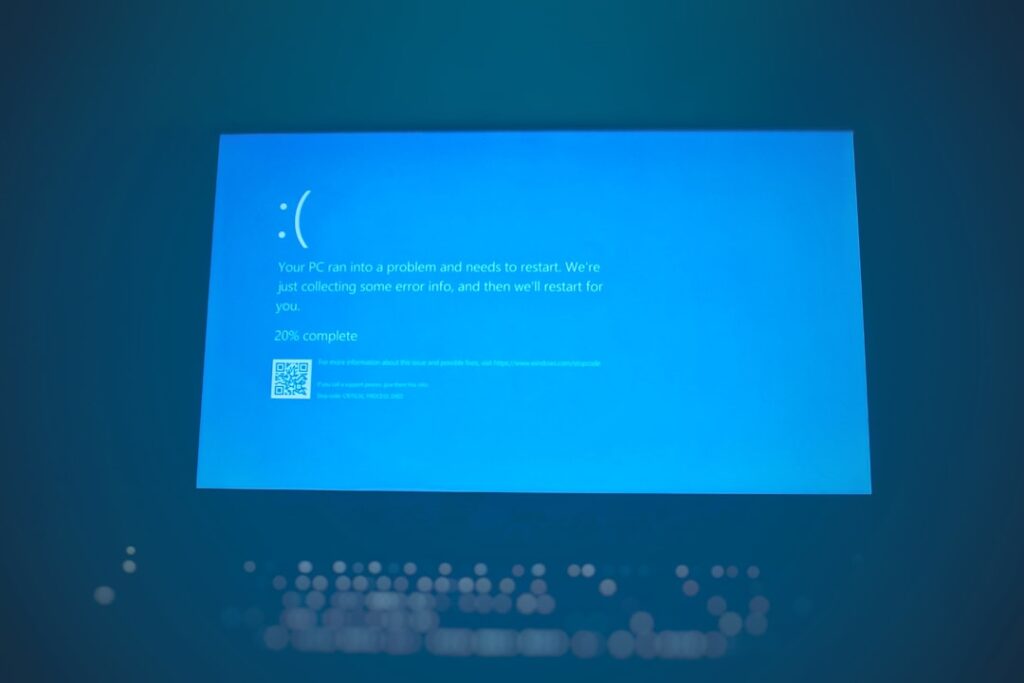
SYSTEM_SERVICE_EXCEPTION is a Windows stop code that appears when Windows hits a serious kernel-level problem and shuts down or restarts to protect the system. The stop code does not automatically prove that one specific component is bad. A device driver, software conflict, corrupted system file, unstable memory or other hardware problem can all be involved.
Microsoft’s general stop-code guidance says unexpected Windows restarts can be caused by hardware, drivers or software. The practical goal is therefore to identify what changed, collect the exact stop-code information and test one likely cause at a time instead of installing random “BSOD fixer” utilities.
Microsoft’s current overview is Troubleshooting Windows unexpected restarts and stop code errors.
Quick Answer: Best Troubleshooting Order
- Record the stop code and any “What failed” module name.
- Restart once and see whether the crash repeats.
- Remove or disconnect newly added hardware.
- Review recent driver, software and Windows changes.
- Check Windows Update and Device Manager.
- Use Safe Mode if normal Windows keeps crashing.
- Check free disk space, memory and system files.
- Use Event Viewer or dump analysis only when the basic evidence points deeper.
1. SYSTEM_SERVICE_EXCEPTION Is a Symptom, Not a Diagnosis
The stop code tells you Windows encountered a serious error while processing a system service or kernel operation. It does not identify the guilty driver or hardware by itself.
If Windows displays a module name after What failed, photograph or write it down. A recurring module name can give you a much better lead than the stop code alone.
2. Windows 11 Stop Screens May Not Always Be Blue
Microsoft notes that the color and presentation of a stop-code screen can vary by Windows 11 version. The important evidence is the stop code, module name if present, and the timing of the crash—not whether the screen is literally blue.
3. If It Happened Once, Restart Before Making Big Changes
Microsoft’s basic guidance says many unexpected restarts resolve after a restart and need no further action. If SYSTEM_SERVICE_EXCEPTION happened one time and the computer has been stable since, do not immediately uninstall half the system.
If the same stop code returns, then begin controlled troubleshooting.
4. Ask What Changed Immediately Before the Crashes
Common clues include a new GPU or Wi-Fi driver, antivirus/VPN software, a Windows update, new RAM, a USB device, a graphics card, overclocking, virtualization software or a major application update.
The timing does not prove causation, but it tells you what to test first.
5. Disconnect Newly Added Hardware
Microsoft recommends removing new hardware as one of the first stop-code troubleshooting steps. Shut the PC down and temporarily disconnect nonessential devices added just before the problem began.
For internal components, power the PC down completely and follow proper hardware-safety procedures. Do not remove storage or other critical components merely as an experiment if you are unsure what they do.
6. Check Windows Update
Go to Settings > Windows Update and install current Windows updates unless the crash clearly began with a specific recent update that is already under investigation.
If the problem began immediately after a Windows quality update, use PCFix411’s How to Uninstall a Problematic Windows 11 Update Safely rather than randomly deleting update files.
7. Check Device Manager for Driver Problems
Right-click Start and open Device Manager. Look for devices with warning icons, then inspect the affected device’s status and driver information.
If a driver was updated immediately before the crashes, rolling it back may be more useful than installing another unrelated driver package. PCFix411’s Windows 11 Driver Problems guide explains the safe update, rollback and reinstall sequence.
8. Do Not Use Bulk Driver-Updater Utilities
A SYSTEM_SERVICE_EXCEPTION crash can involve a driver, but that does not mean every driver on the PC should be replaced. Bulk “driver fixer” tools can install generic or inappropriate packages and make the crash harder to diagnose.
Use Windows Update first, then the PC or hardware manufacturer when a manual driver is genuinely needed.
9. Start Windows in Safe Mode
Safe Mode starts Windows with a limited set of drivers and services. If the PC becomes stable in Safe Mode, that is evidence that a third-party driver, service or startup component may be involved.
Microsoft documents Safe Mode through Windows Startup Settings.
10. Check Available Disk Space
Microsoft recommends keeping sufficient free disk space during stop-code troubleshooting and suggests roughly 10–15% free space as a useful target. Windows needs working room for updates, paging, logs and memory dump files.
If the system drive is almost full, remove temporary files and unnecessary software carefully. Do not use aggressive registry cleaners.
11. Test Memory if Crashes Are Random
Unstable RAM can create changing stop codes, application crashes and corrupted data. Search Start for Windows Memory Diagnostic and run the test. Microsoft’s advanced stop-code guidance recommends reviewing the MemoryDiagnostics-Results entry in Event Viewer afterward.
If you recently installed RAM, also verify that the modules are compatible and fully seated. Return overclocked memory to stable defaults while troubleshooting.
12. Return CPU, GPU and RAM Overclocks to Default
A system that passes games or benchmarks can still crash under a different workload. If the PC is overclocked or undervolted, return the CPU, GPU and memory to known-stable settings before blaming Windows.
Do not flash the BIOS merely because you saw a stop code. Firmware updates should be performed only for a specific compatibility or stability reason and with the manufacturer’s instructions.
13. Repair Windows System Files
If crashes began after corruption, failed updates or disk problems, Windows system-file tools can be useful. Open an elevated Terminal and run DISM.exe /Online /Cleanup-Image /RestoreHealth, then sfc /scannow.
These tools are not universal BSOD cures; they address Windows component-store and protected-system-file problems. Restart after repairs and see whether the same stop code returns.
14. Check Event Viewer for the Same Time Window
Microsoft recommends Event Viewer as an advanced troubleshooting source. Open Event Viewer > Windows Logs > System and examine critical/error events around the exact crash time.
Do not assume every warning in Event Viewer caused the crash. Windows logs many harmless or secondary events. Look for repeated device, driver, storage or service failures that align with the stop-code timing.
15. Memory Dumps Can Identify the Failing Module
Windows can save memory dump files after stop errors. Advanced users and IT professionals can analyze them with Microsoft debugging tools to identify the code and modules active when the system failed.
A module named in a dump is evidence, but not always proof that the module itself is defective. A driver can crash because another component corrupted memory earlier.
16. Security Software, VPNs and Low-Level Utilities Deserve Attention
Antivirus products, VPN clients, hardware-monitoring utilities, RGB/control software and virtualization tools can install kernel-level drivers. If crashes started immediately after installing or updating one of these products, update it from the publisher or temporarily remove it using the publisher’s supported uninstall method.
If the program refuses to uninstall, use Program Won’t Uninstall in Windows 11? rather than deleting its folder or registry keys manually.
17. Check Storage Health if Other Symptoms Exist
Storage problems can corrupt files and create crashes, but do not assume every BSOD means the SSD is dying. Watch for accompanying symptoms such as file corruption, I/O errors, disappearing drives or repeated disk warnings.
Back up important data before deeper repair work. PCFix411’s Windows 11 Backup Guide provides a safer baseline before recovery work.
18. When System Restore Makes Sense
If the PC was stable before a recent driver, software or configuration change and you have a suitable restore point, System Restore can roll system configuration back without being as disruptive as resetting Windows.
Microsoft recommends choosing the least disruptive recovery option that fits the problem. Review Recovery options in Windows before escalating.
19. When Resetting Windows Is Too Aggressive
Do not reset or reinstall Windows because of one stop-code event. A reset removes applications and changes settings, while a clean reinstall is even more disruptive. Use these options only after you have backed up important files and the evidence supports a broader Windows corruption problem.
20. When Hardware Testing Is the Next Step
If Windows is current, drivers are stable, system files are healthy and the PC still crashes repeatedly—especially under load—test the likely hardware. RAM, storage, GPU, motherboard and power-delivery problems can all create stop errors.
If the PC will not boot reliably enough to troubleshoot, start with PC Won’t Boot? Step-by-Step Diagnostic Checklist.
SYSTEM_SERVICE_EXCEPTION Checklist
- Record the stop code and “What failed” text.
- Restart and confirm whether the crash repeats.
- Disconnect newly added nonessential hardware.
- Review recent driver/software/update changes.
- Run Windows Update.
- Check Device Manager.
- Roll back a recently changed driver if evidence points there.
- Test Safe Mode.
- Confirm adequate free disk space.
- Run Windows Memory Diagnostic when appropriate.
- Return overclocks to stable defaults.
- Run DISM/SFC if corruption is plausible.
- Review Event Viewer and dumps only as evidence, not guesswork.
- Back up data before recovery or hardware work.
Bottom Line
SYSTEM_SERVICE_EXCEPTION is not a one-click diagnosis. Treat it as a stop-code investigation: capture the exact evidence, identify what changed, start with Microsoft’s basic hardware/driver/update checks, use Safe Mode and memory/system-file tests when appropriate, and escalate only when the same crash keeps returning. Controlled troubleshooting is much safer than replacing drivers, deleting registry keys or resetting Windows at random.