Some links on PCFix411 may earn a commission from GearReady, software partners, or Amazon Associates at no extra cost to you.
Retro gaming on a modern television can be as simple as plugging in a game stick or as flexible as connecting a PC loaded with emulation software. The best option depends on how much setup you want to do, which systems you care about, and whether you value portability, customization or plug-and-play convenience.
This guide breaks down the main device types so you can choose the right path without buying hardware that does more—or less—than you need.
1. HDMI Retro Game Sticks
Game sticks are the simplest living-room option. They usually plug directly into an HDMI port, include wireless controllers and boot into a game menu. They are compact, inexpensive compared with a full PC and easy to move between televisions.
The tradeoff is flexibility. Storage, controller mapping, emulator quality and software updates vary by device. Before buying, look beyond the advertised game count. A library of 20,000 games means little if the interface is confusing, duplicates are common or the systems you actually want do not run well.
2. Mini Retro Consoles
Mini consoles are small dedicated boxes designed around a console-style experience. Compared with sticks, they may provide more ports, easier cooling and better controller options. They fit well in an entertainment center and can be easier to organize than a dongle hanging behind the TV.
For buyers who want to sit down, select a system and play, a mini console is usually easier than building a PC emulation setup.
3. Retro Handhelds With TV Output
A handheld makes sense if you want one device for both portable gaming and television play. Not every handheld supports video output, so verify that feature before buying. Also check whether the device can pair with external controllers when connected to the TV.
Handhelds are especially attractive when you want to play older 8-bit, 16-bit and handheld systems away from the television, then continue at home.

4. A Windows PC Running RetroBat or Similar Front Ends
A PC is the most flexible option. You can use stronger hardware, more storage, multiple controllers and more advanced emulator settings. PCFix411 has covered RetroBat on Windows, which provides a console-style interface for organizing many emulators in one place.
The downside is setup time. You have to maintain Windows, configure controllers, organize storage and troubleshoot individual emulators. That is worthwhile for enthusiasts but unnecessary for someone who only wants quick classic gaming on the couch.
5. External Gaming Drives
Large external drives marketed for emulation can simplify storage and sometimes arrive organized around launchers such as RetroBat, LaunchBox, Playnite, CoinOps or Hyperspin. They can be convenient for users who already have a capable PC but do not want to build the entire library structure from scratch.
Before buying any preconfigured drive, verify what software is included, what you are legally entitled to use, and whether the device depends on copyrighted game files that you do not own. PCFix411 treats retro gaming as a technical and historical category, not as permission to distribute copyrighted games.
Controller Compatibility Matters
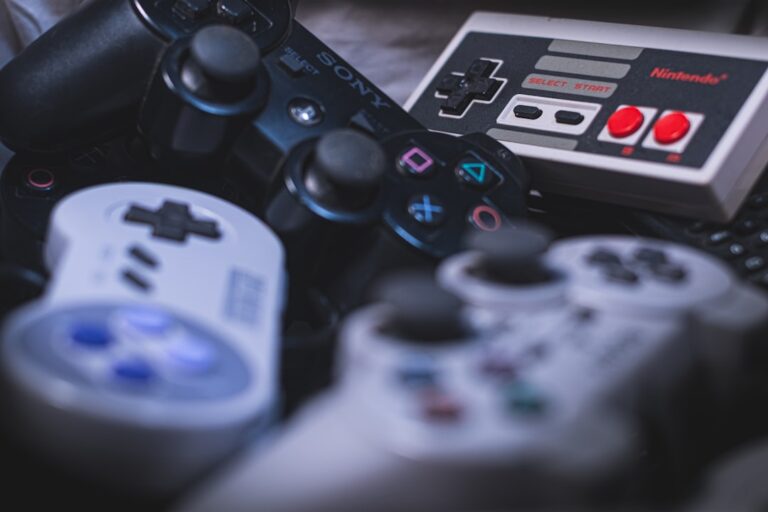
A retro system is only enjoyable if the controller works well. Check whether a device uses Bluetooth, 2.4GHz wireless, USB or a proprietary connection. Also check whether you can add your own controller instead of being locked into the included gamepads.
For PC, Android TV and many emulation devices, broad controller compatibility can be more valuable than flashy features. GearReady’s live Game Controllers collection is the correct shopping destination when the controller itself is the upgrade.
Do Not Choose by Game Count Alone
Huge advertised game counts are one of the least useful specifications. Look instead at:
- Which console generations are supported well
- Processor and memory
- Storage size and whether it is replaceable
- Controller quality and compatibility
- HDMI output resolution and aspect-ratio options
- Save states and resume features
- Software update support
- Menu quality and search tools
A smaller, better-organized library can be much more enjoyable than a giant collection full of duplicates.
Match the Device to the Era You Want to Play
Older arcade, Atari, NES, SNES, Genesis and similar systems are relatively easy to emulate. Later 3D systems demand more processing power and better emulator support. If PlayStation 2, GameCube, Dreamcast or newer systems are priorities, verify real-world compatibility for the exact hardware rather than assuming every retro device can run them smoothly.
Which Retro Device Is Best for You?
Choose a Game Stick If:
- You want the easiest plug-and-play setup.
- You prefer a device hidden behind the TV.
- You mostly care about older systems.
- You do not want to maintain a Windows PC.
Choose a Handheld If:
- You want portable gaming too.
- You mainly play older console and handheld systems.
- You want one device instead of separate TV and mobile systems.
Choose a Mini Console If:
- You want a living-room-first experience.
- You want more ports than a stick.
- You prefer a simple console-style interface.
Choose a PC Setup If:
- You want the most customization.
- You need stronger hardware for later systems.
- You already own a suitable computer.
- You are comfortable configuring emulators and controllers.
Where PCFix411 Sends Retro-Gaming Shoppers
For this topic, the correct GearReady destination is the live Retro Gaming & Emulation collection, which currently groups game sticks, handhelds, plug-and-play systems, gaming drives and related retro hardware. Controller-only shoppers should use the separate Game Controllers collection.
Bottom Line
For most casual living-room users, a game stick or mini console is the simplest path. A handheld is best when portability matters. A Windows PC is the best choice for enthusiasts who want maximum control and compatibility. Choose the platform based on the systems you actually want to play, not on the largest advertised game count.