Some links on PCFix411 may earn a commission from GearReady, software partners, or Amazon Associates at no extra cost to you.
If you want to play a large library of retro games on a Windows PC, RetroBat provides a front end that can organize systems, artwork, controllers and emulator settings in one place. This RetroBat Windows guide explains the setup in plain language, including what to prepare, how to add legally obtained game files, and how to troubleshoot the problems beginners most often encounter.
Quick answer: Download RetroBat from its official source, install it on a suitable Windows drive, run the first-time setup, connect one controller, then add legally obtained game files to the correct system folders. Test one game before building a larger collection.
What is RetroBat?
RetroBat is a Windows-based front end for managing retro-gaming systems through a single interface. Instead of launching every emulator separately, you can browse systems, view game artwork, map controllers and start compatible titles from one library. The front end does not magically make every game compatible; the emulator, system files, drivers, controller and game file all still matter.
For the safest starting point, use the official RetroBat website and its official documentation. Avoid unofficial download pages that bundle modified launchers, unknown installers or suspicious “ROM packs.”
What you need before installing RetroBat
- A supported Windows PC with current updates and enough free storage.
- A wired or wireless controller that Windows recognizes.
- Internet access for the official download and documentation.
- Legally obtained game files and any required system files.
- A backup plan for your configuration and save files.
Storage needs depend on the systems and media you plan to use. A small library may fit comfortably on an internal SSD, while disc-based collections, artwork and video previews can grow quickly. If your computer already feels slow, the PCFix411 Optimization guides can help you check storage, memory and startup bottlenecks before you build the library.
How to install RetroBat on Windows
1. Download from the official source
Start at the official RetroBat site and read the documentation for the release you are installing. Download the package from the project’s official distribution path, then scan the file with Windows Security or your trusted security software before opening it. Do not disable security protection just to run an installer.
2. Choose a stable installation location
Install RetroBat in a simple folder on a drive with enough free space. Avoid deeply nested folders, removable drives that disconnect frequently, and locations controlled by Windows permissions. A dedicated folder such as C:\RetroBat or a clearly named secondary-drive folder makes future backups and troubleshooting easier.
3. Complete the first launch
Open RetroBat after installation and allow it to create its working folders. The first launch may take longer while the front end prepares its configuration. Read the prompts instead of changing several settings at once. If Windows displays a firewall or security prompt, confirm that the program came from the source you intended to use before choosing an option.
How to add games to RetroBat
RetroBat organizes games by system. Each system has a corresponding folder, and the front end uses the folder location, filename and supported format to decide where a game belongs. Use the official documentation for the exact folder name and file formats for the system you are configuring.
- Open the RetroBat installation folder and locate the games directory.
- Choose the folder for the system you are setting up.
- Copy only game files you are legally entitled to use into that folder.
- Restart or refresh the front end so it can scan the new files.
- Test one title and confirm that its controls, display and audio work.
PCFix411 does not host or link to unauthorized ROM downloads. Copyright and emulation rules vary by country, and owning a console or cartridge does not automatically answer every legal question about copying or downloading a game. Use files you are permitted to use and check the rules that apply where you live.
BIOS and firmware files matter too
Some systems require BIOS or firmware files from original hardware before an emulator will start correctly. If RetroBat or an emulator reports a missing BIOS, use the official RetroBat system documentation to identify the exact required file and checksum. Avoid random BIOS bundles and preconfigured images: unknown files make troubleshooting harder and can create legal or security problems.
Controller setup and mapping
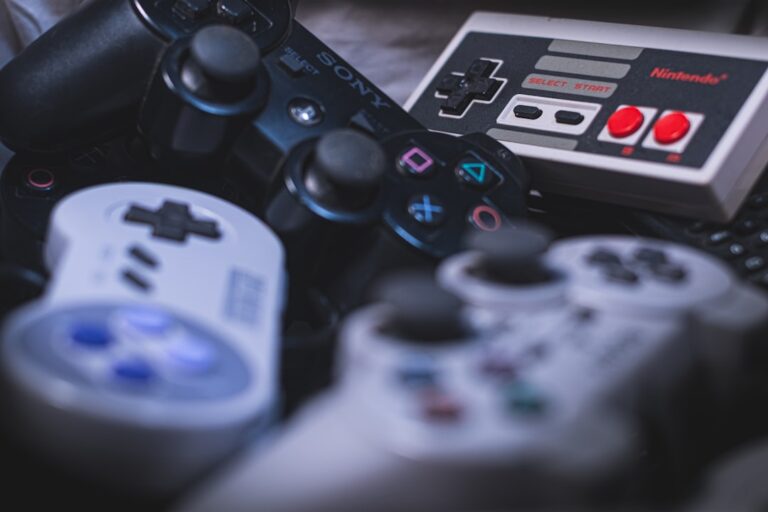
Connect one controller before configuring a large library. Windows should detect it first, and RetroBat should then offer a way to map its buttons. Start with the standard controls, save the configuration, and test a game that uses simple inputs. Arcade systems may need additional buttons, a stick, a light gun or a different layout.
- Use a wired connection during the initial setup when possible.
- Map the menu, confirm, back and hotkey functions carefully.
- Test both digital and analog movement if the controller supports both.
- Save a backup before experimenting with system-specific overrides.
If you are replacing an unreliable bundled controller or building a living-room setup, compare compatibility before buying. PCFix411’s Game Controller Buying Guide explains wired, Bluetooth and 2.4GHz tradeoffs.
Game Controllers for PC & Retro Setups
Browse current controller options for Windows, emulators, Android TV and retro-gaming setups. Confirm platform support before ordering.
Graphics, audio and display settings
Begin with default graphics settings. Once a game launches correctly, change one option at a time. Resolution scaling, shaders, frame limits, aspect ratio and synchronization can all affect performance. A setting that looks excellent in one system may cause stutter or input delay in another.
For audio, check the Windows output device first, especially when using HDMI, Bluetooth headphones or a USB dock. Then check the emulator’s audio settings. If other Windows applications are also silent, follow the PCFix411 Windows troubleshooting guides before changing RetroBat settings.
Common RetroBat problems and practical fixes
RetroBat opens, but no games appear
Confirm that the file is in the correct system folder and uses a format supported by that system’s emulator. Check the filename and folder spelling, then refresh or restart RetroBat. If the game is compressed, read the official documentation before extracting or changing it; different systems handle archives differently.
A game launches and immediately closes
Test a second game for the same system. If every title fails, review the emulator, system files, Windows permissions and graphics driver. If only one title fails, the file format, game version or compatibility may be the issue. Record the system, emulator and error message before changing settings.
The controller works in Windows but not in a game
Reopen the controller mapping screen and confirm that the game is using the expected emulator profile. Disconnect extra controllers, remove conflicting remapping software, and test with a wired connection. Some arcade games need a system-specific layout rather than the default console mapping.
The picture is stretched or has black bars
Check the system’s aspect-ratio and resolution settings. Black bars can be correct when preserving the original display shape; stretching the image may fill the screen but distort the game. Change the setting only after you understand whether the goal is accurate presentation or a full-screen modern layout.
RetroBat becomes slow or stutters
Return graphics options to their defaults, close background applications, and check whether the PC is using the intended power mode. Update the graphics driver through the computer or graphics-card manufacturer. If the slowdown affects normal Windows use too, inspect storage health, available memory and thermals rather than blaming the front end alone.
How to keep a RetroBat library organized
- Keep one clear folder structure and avoid duplicate copies of the same game.
- Use consistent filenames so scraping and sorting remain predictable.
- Back up configuration, saves and custom controller profiles.
- Test updates with a small sample before changing a working installation.
- Document any system-specific settings that you may need to restore.
A smaller, tested library is easier to maintain than a massive collection that has never been launched. Add a few games, confirm that the setup works, and then expand it. This approach also makes it easier to identify whether a problem comes from a new file, a changed emulator or a Windows update.
RetroBat FAQs
Is RetroBat available for Windows?
Yes. RetroBat is designed as a Windows front end for retro-gaming systems. Use the official site and documentation for current installation and compatibility information.
Can RetroBat play every retro game?
No. Compatibility depends on the system, emulator, game file, required system files, controller and PC hardware. Treat the library as a collection of individual systems rather than one universal compatibility guarantee.
Do I need a powerful gaming PC?
Many older systems run on modest Windows hardware, but newer or more demanding platforms can require more CPU, GPU and memory headroom. Start with the systems you actually want to play and test performance before buying upgrades.
Where should I get RetroBat help?
Use the project’s official documentation for installation and emulator-specific questions. For general Windows, storage and PC performance issues, browse the PCFix411 Gaming & Retro Tech category or contact PCFix411 with your Windows version, RetroBat version, system, controller and exact error.
Sources and verification
This 2026 refresh uses the official RetroBat project and official RetroBat documentation for current version, requirements, system-folder and troubleshooting guidance. Emulator requirements change by system, so verify the documentation for the specific platform you are configuring before changing BIOS, firmware, renderer or controller settings.
Final checklist
- Official RetroBat download and documentation used.
- Windows, security software and graphics drivers are current.
- One controller mapped and tested.
- One legally obtained game file placed in the correct system folder.
- Default graphics and audio settings tested before customization.
- Configuration and save files backed up.
Prefer dedicated hardware instead of a full PC build?
Browse GearReady game consoles for retro-friendly hardware, then compare current gaming devices, controllers and accessories through Amazon Video Games Best Sellers.
Affiliate disclosure: PCFix411 may earn a commission from qualifying purchases.
RetroBat is most useful when it turns a carefully tested collection into an easy-to-browse Windows library. Start small, keep the setup documented, and use official guidance when a system or emulator behaves differently than expected. For more retro recommendations, read PCFix411’s Atomiswave games guide, browse the Game Reviews tag, or explore the rest of our practical PC guides.