Some links on PCFix411 may earn a commission from GearReady, software partners, or Amazon Associates at no extra cost to you.
Updated September 2, 2026. If a Windows 11 PC feels slow, the cause is usually one of a few things: too many startup apps, low free storage, background processes, malware, outdated drivers, power settings, overheating, or hardware that has simply reached its limits.
This guide replaces older Windows performance advice with a 2026 troubleshooting sequence. Start with the free fixes, measure the result, and only spend money on hardware after you know where the bottleneck is.
1. Install Windows updates and optional driver updates
Open Settings > Windows Update and install pending updates. Then check Advanced options > Optional updates for relevant driver updates. Microsoft continues to recommend this as a first-line performance step because Windows updates often include bug fixes and performance improvements.
2. Disable unnecessary startup apps
Press Ctrl + Shift + Esc, open Startup apps, and disable software you do not need every time Windows starts. You can also manage startup apps from Settings > Apps > Startup.
3. Free up storage with Storage Sense
Go to Settings > System > Storage. Use Temporary files for a manual cleanup and enable Storage Sense if you want Windows to remove unnecessary temporary files automatically. Low disk space can noticeably reduce responsiveness.
4. Uninstall software you no longer use
Open Settings > Apps > Installed apps and remove software you no longer need. This can free storage and reduce background services, update agents and startup tasks.
5. Check Task Manager for the real bottleneck
Open Task Manager and watch the CPU, Memory and Disk columns while the PC is slow. A process that constantly drives one resource near 100% gives you a better clue than guessing. If memory is consistently full, RAM may be the problem. If a hard drive is pinned at 100%, storage may be the limiting factor.
6. Run a malware scan
Open Windows Security > Virus & threat protection and run a Quick scan. Malware can consume processor, memory and disk resources in the background. If symptoms persist, use a deeper scan option.
7. Reduce background activity
For apps that support it, open Settings > Apps > Installed apps, choose the app’s advanced options, and reduce or disable unnecessary background permissions. Also close browser tabs and applications you are not actively using.
8. Try Best performance power mode when appropriate
On supported systems, go to Settings > System > Power & battery and choose Best performance when you need maximum responsiveness. On laptops this uses more power and can increase heat, so it is not always the best everyday setting.
9. Optimize drives correctly
Search Windows for Defragment and Optimize Drives. Let Windows handle the appropriate optimization for the drive type. Do not follow old advice that tells you to manually defragment every SSD like a mechanical hard drive.
10. Check cooling and dust
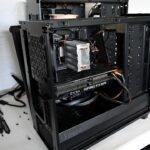
A computer that overheats can throttle CPU or GPU performance. Make sure vents are clear, fans are working, and dust is not blocking airflow. Laptops should be used on a hard surface that does not cover the intake vents.
11. Upgrade RAM when memory is the limit
If Task Manager shows memory staying near capacity during normal work, adding RAM may help—if the computer supports an upgrade. Before buying anything, check the system’s maximum supported memory and whether the RAM is replaceable or soldered.
12. Upgrade from a hard drive to an SSD when storage is the limit
For an older PC still using a mechanical hard drive, moving Windows to an SSD can transform startup, application loading and general responsiveness. If the computer already has an SSD, diagnose CPU, RAM, thermals and software before assuming storage is the problem.
When should you replace the PC instead?
If the system cannot officially support the current Windows version, has non-upgradeable low memory, uses very old processors, or needs several expensive components at once, replacement may deliver better value than stacking upgrades onto aging hardware.
Microsoft maintains a current Windows performance troubleshooting guide. For more PCFix411 help, browse Windows & PC Troubleshooting, Computers & Hardware, and Tech Buying Guides.