Some links on PCFix411 may earn a commission from GearReady, software partners, or Amazon Associates at no extra cost to you.
Windows 11 can technically run on modest memory, but the amount of RAM that produces a comfortable experience depends on what you actually do with the PC. A system used for email and web browsing has very different needs from a gaming PC, video-editing workstation or machine running virtual machines and local AI tools.
For most people in 2026, 16 GB is the practical baseline. Eight gigabytes can still work for light use, while 32 GB is increasingly attractive for gaming, creation and heavier multitasking. Sixty-four gigabytes and beyond make sense for specialized workloads rather than ordinary Windows use.
Why RAM Matters
RAM holds the data and programs your CPU needs immediately. When physical memory fills, Windows moves less-active data to the page file on storage. Modern SSDs make paging less painful than it was on hard drives, but storage is still far slower than RAM. Heavy paging can make the system feel sluggish even when the processor is fast.
Is 8 GB Enough for Windows 11?
Eight gigabytes is usable for basic tasks: email, a few browser tabs, office documents, streaming and light utilities. It is common on entry-level laptops and compact PCs.
The limitation appears when you combine tasks. A browser with many tabs, Teams or Zoom, cloud-sync software, antivirus, office applications and background utilities can consume most of 8 GB quickly. Windows then relies more heavily on the page file.
Choose 8 GB only when the budget is tight, the workload is genuinely light, or the machine can be upgraded later.
Why 16 GB Is the Sweet Spot
Sixteen gigabytes gives Windows room for normal background processes while leaving enough memory for productivity applications, moderate gaming, many browser tabs, basic photo editing and typical home-office work.
For a new mainstream PC in 2026, PCFix411 considers 16 GB the sensible starting point unless you already know your workload requires more.
When 32 GB Makes Sense
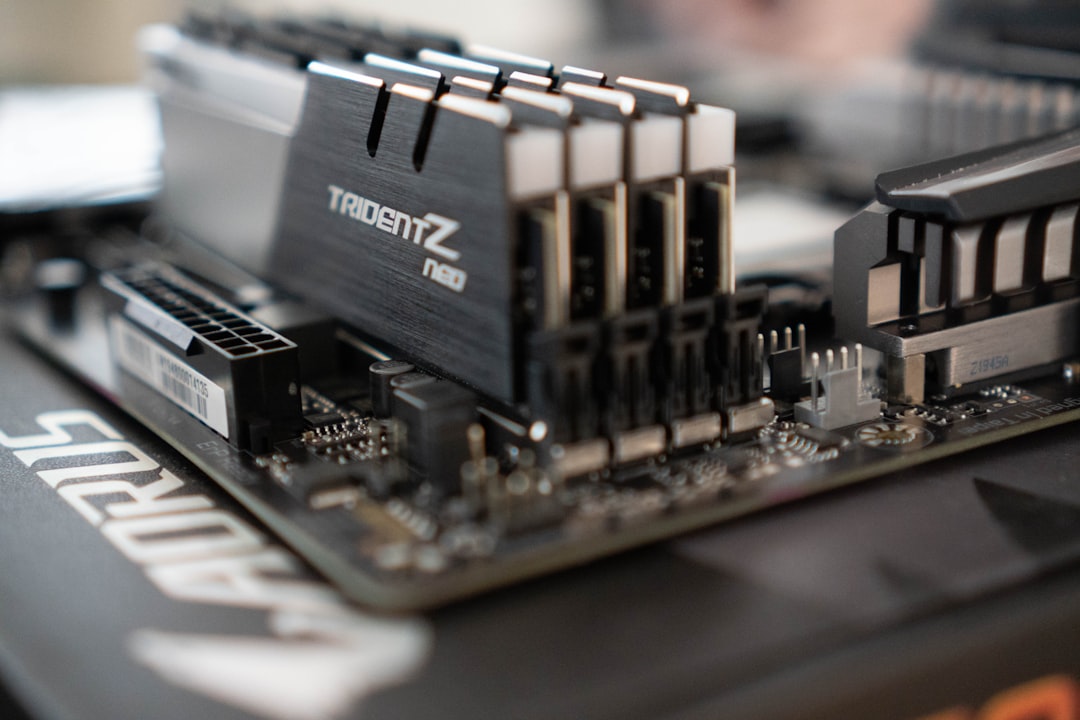
Thirty-two gigabytes is useful if you routinely keep many applications open, play modern games while streaming or recording, edit larger photos, work with 4K video, run development tools, use virtual machines or experiment with memory-hungry AI software.
It also provides more headroom for users who want to keep a PC several years. Memory requirements tend to rise as applications add features and background services.
Who Needs 64 GB or More?
Sixty-four gigabytes is not automatically ‘better’ for ordinary users. It becomes valuable when the workload can actually use it: high-resolution video production, large Adobe projects, professional music sessions, multiple virtual machines, engineering software, large datasets, software development labs and some local AI workflows.
If Task Manager shows that your typical workload never approaches 32 GB, moving to 64 GB will not make normal browsing or office work noticeably faster.
RAM Recommendations by Workload
| Workload | Recommended RAM | Notes |
|---|---|---|
| Basic web, email, streaming | 8–16 GB | 16 GB provides better multitasking headroom |
| General home and office | 16 GB | Best mainstream starting point |
| Gaming | 16–32 GB | 32 GB helps with newer games, mods and background apps |
| Photo editing and light video | 16–32 GB | Depends on project size and application |
| 4K video and heavy creation | 32–64 GB | Large projects benefit from additional memory |
| Virtual machines and development labs | 32–64 GB+ | Each VM needs its own allocation |
| Local AI and large datasets | 32–64 GB+ | Depends heavily on model and workflow |
Check Your Real Memory Use
Before upgrading, open Task Manager > Performance > Memory while your normal applications are running. Look at memory use during the workload that feels slow.
If memory usage regularly approaches the installed capacity and the system is paging heavily, adding RAM may help. If only half your memory is being used, the bottleneck may be storage, CPU, GPU, heat or software instead.
Our SSD vs RAM Upgrade guide explains how to decide which upgrade will have the bigger effect.
Dual Channel vs Single Channel
Many systems achieve better memory bandwidth with matched modules operating across multiple memory channels. For example, two 8 GB modules may provide better bandwidth than one 16 GB module on a dual-channel platform.
The exact configuration depends on the motherboard and processor. Consult the system manual for the correct slots and supported arrangements.
Do RAM Speeds Matter?
Memory speed and timings can influence performance, especially on integrated graphics and some gaming workloads. But capacity comes first. Having enough moderately fast RAM is generally better than having too little premium high-speed RAM.
Do not assume the highest advertised speed will work automatically. The CPU, motherboard, BIOS and memory kit all determine supported speeds.
DDR4 vs DDR5
DDR4 and DDR5 are not interchangeable. A motherboard designed for DDR4 cannot use DDR5 modules, and vice versa. When upgrading an existing PC, you must buy the memory generation the motherboard supports.
DDR5 offers greater bandwidth and continues to mature, but moving from DDR4 to DDR5 usually requires a platform change rather than a simple memory swap.
Laptop RAM Can Be Soldered
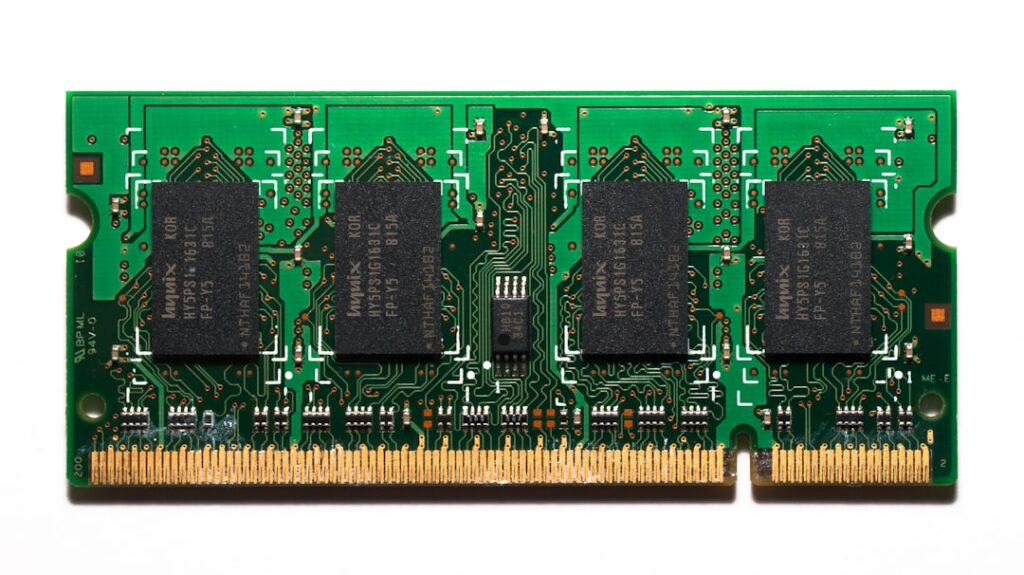
Some laptops have replaceable SO-DIMM memory modules. Others solder some or all RAM directly to the motherboard. If you are buying a laptop with soldered memory, choose enough capacity at purchase because future upgrades may be impossible.
This is one reason our Laptop vs Desktop guide treats upgradeability as part of the purchase decision.
How to Check Maximum Supported RAM
Use the PC or motherboard manufacturer’s documentation. Check the maximum capacity, number of slots, supported module sizes, memory generation and any speed limitations.
On branded laptops and desktops, the service manual is often more reliable than generic memory-scanner tools because it reflects the actual motherboard configuration.
Will More RAM Make Windows Boot Faster?
Not usually, unless the machine is severely memory-constrained. SSD performance, startup applications and Windows health have a larger effect on boot time. If the PC still uses a hard drive, an SSD upgrade is usually much more noticeable than adding memory to a system that already has enough RAM.
Will More RAM Increase FPS?
It can if the game is running out of memory or if an integrated GPU relies heavily on system memory bandwidth. But once the system has enough RAM, extra unused capacity does not automatically increase frame rates. CPU and GPU performance remain the primary factors for most games.
Do You Need Matching RAM Sticks?
Matched modules are preferred because they reduce compatibility uncertainty and make it easier to run the intended channel configuration and memory profile. Mixed modules can work, but the system may fall back to common speeds and timings.
Should You Upgrade RAM or Replace the PC?
If the processor is still adequate, the system supports Windows 11 properly and storage is healthy, adding memory can extend the life of a computer at modest cost. If the platform is extremely old, limited to very small memory capacities or has several other bottlenecks, replacement may make more sense.
See Best PC Upgrades Before Buying a New Computer for a broader upgrade decision.
PCFix411 RAM Checklist
- Check current memory use during your real workload.
- Confirm whether the RAM is replaceable.
- Verify DDR generation and module type.
- Check maximum supported capacity.
- Use the recommended memory slots.
- Prefer matched modules when practical.
- Choose capacity before chasing maximum speed.
- Remember that unused RAM does not automatically make a PC faster.
Bottom Line
For Windows 11 in 2026, 16 GB is the best baseline for most people. Eight gigabytes remains workable for light computing, 32 GB is increasingly appropriate for gaming and serious multitasking, and 64 GB or more belongs to workloads that can prove they need it. Check actual memory use before spending money, and always confirm hardware compatibility before buying modules.