

Some links on PCFix411 may earn a commission from GearReady, software partners, or Amazon Associates at no extra cost to you.
TikTok can look simple from the outside: open the app, swipe through short videos and tap the plus button when you want to post. Once you start using it regularly, though, there is more to understand—privacy, recommendations, comments, direct messages, downloads, account security, screen-time controls and the difference between creating for friends and creating for a public audience.
This PCFix411 beginner guide walks through the practical parts of using TikTok in 2026 without assuming you already know the app. Interface labels can change as TikTok updates its mobile apps, but the underlying workflow remains similar.
1. Create Your TikTok Account
Install TikTok from the official Apple App Store or Google Play Store, open the app and choose a sign-up method. TikTok may let you register with a phone number, email address or supported third-party sign-in option depending on your device and region.
Use an email address or phone number you control and can recover later. Avoid creating an account around a temporary inbox or number because account recovery becomes much harder if you lose access.
2. Set Up Your Profile Carefully
Your profile is the public-facing identity tied to your videos and interactions. Add a recognizable profile image, choose a username you can keep long term and write a short bio that explains what you post about.
If you are building a creator, business or professional presence, keep the username consistent with your other public profiles when possible. That makes it easier for viewers to recognize you across platforms.
3. Understand the For You and Following Feeds
TikTok’s For You feed recommends content based on signals such as what you watch, skip, like, share and interact with. The Following feed focuses more heavily on accounts you already follow.
Do not assume the For You feed is a neutral sample of everything happening on TikTok. It is personalized. If the feed becomes repetitive or unhelpful, TikTok currently provides controls for managing topics and refreshing the For You feed in its privacy and account settings.
4. Search Before You Scroll Forever
Use TikTok search when you want a specific tutorial, creator, topic, product demonstration or trend instead of relying entirely on recommendations. Search results can include videos, users, sounds and other content types.
For technical advice, financial claims, health information or news, treat TikTok as a discovery tool rather than your final source. Verify important information with authoritative documentation before acting on it.
5. How to Post Your First TikTok
Tap the create button, usually shown as a plus symbol, then choose whether to record in the app or upload media from your phone. After recording or selecting clips, you can generally trim footage, add text, captions, music or sounds, effects and other editing elements before publishing.
Before tapping Post, review the audience and privacy options for that individual post. TikTok allows post-level privacy controls, so your account can have one overall privacy setting while individual posts may have different visibility choices.
6. Record for the Phone Screen
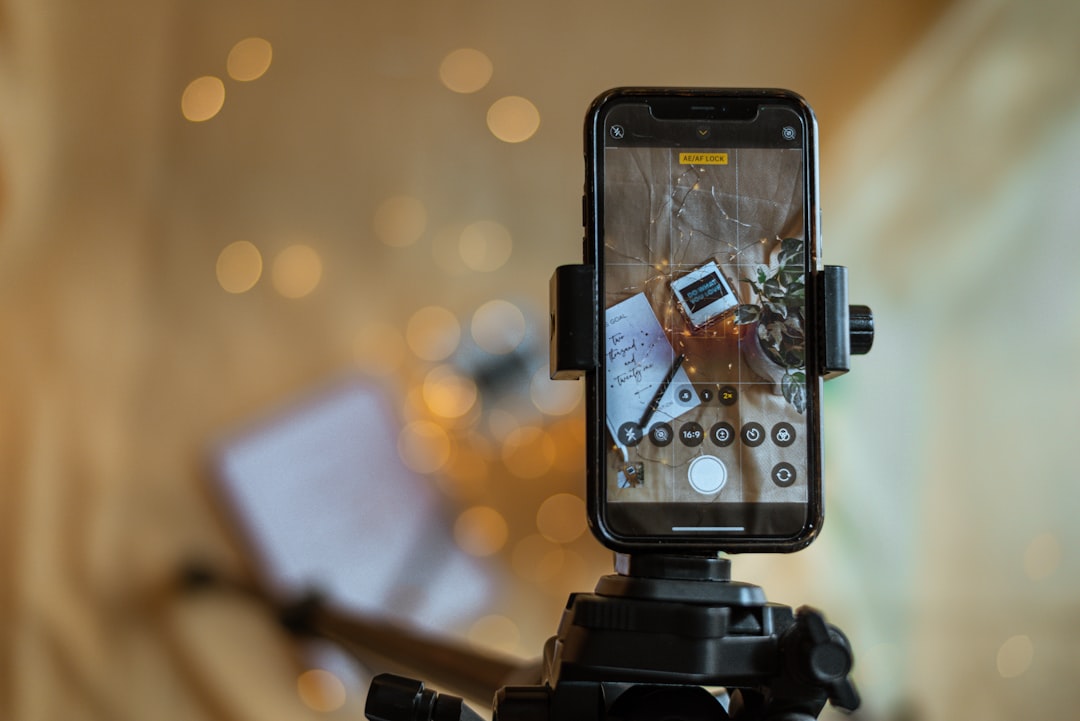
Most TikTok viewing happens on a vertical phone screen, so frame your subject with that format in mind. Keep important text away from interface elements near the edges and bottom of the screen. Check the preview before posting to make sure captions, faces and product details are not covered by TikTok controls.
Good lighting matters more than many people expect. Face a window or soft light source, avoid strong backlighting and clean your phone’s camera lens before recording.
7. Prioritize Clear Audio
Viewers will tolerate an average picture more readily than audio they cannot understand. Record in a quieter room, move the microphone closer to the speaker and avoid placing the phone next to a loud fan or air conditioner.
If you create frequently, an external microphone, small light or tripod can make recording more consistent. See PCFix411’s webcam, microphone and lighting setup guide for the same basic principles applied to cameras and desk setups.
8. Use Captions and On-Screen Text
Captions make videos easier to follow when sound is muted and improve accessibility. Review automatically generated captions because names, technical terms and brand names can be transcribed incorrectly.
On-screen text can also help structure a tutorial. Use short phrases rather than covering the video with paragraphs. For how-to content, one instruction per screen is easier to follow.
9. Hashtags Are Labels, Not Magic
Use hashtags that genuinely describe the topic instead of stuffing every trending tag into a post. A useful caption tells viewers what the video is about in plain language and then adds a small number of relevant hashtags if they improve categorization.
Strong content, viewer retention and relevance matter more than trying to reverse-engineer a guaranteed viral hashtag formula.
10. Public vs Private Accounts
TikTok provides a choice between public and private accounts. A private account gives you more control over who can follow you and view your content, while a public account is designed for broader discoverability.
Review this setting before posting personal material. A creator trying to reach a public audience and a family member sharing casually with friends have very different privacy needs.
11. Review Comments, Messages, Downloads, Duet and Stitch
TikTok’s current privacy controls include settings for direct messages, comments, post visibility, video downloads, Duet and Stitch. These features can increase interaction, but they also change how other people can reuse or respond to your content.
Open Settings and privacy and review each area instead of accepting defaults indefinitely. TikTok changes features over time, so check these controls again after major app updates.
12. Protect Your Account
Use a unique password if your TikTok account has its own password, secure the email account tied to TikTok and enable the strongest account-security options available to you. Be suspicious of messages claiming you must urgently verify your account through an unfamiliar link.
Never send a login code or password to someone who contacts you through direct messages. If an account-security warning looks real, open TikTok directly and navigate to the account settings rather than using a link from an unsolicited message.
13. Check Connected Devices and Third-Party Apps
If TikTok offers a device-management or security screen for your account, review it periodically and remove sessions you no longer recognize or use. Also be selective about third-party services that ask you to connect your TikTok account.
Follower-growth tools, analytics services and automation apps can request broad account permissions. Do not grant access simply because a service promises more views.
14. Manage Screen Time
Short-video feeds are designed to keep content moving continuously, which makes time easy to lose track of. TikTok currently includes screen-time controls in its account settings. Use them if you routinely spend longer in the app than intended.
A simple alternative is to decide what you are opening TikTok to do—reply to comments, research a topic, post a video or spend a fixed amount of leisure time—and close the app once that task is complete.
15. Refresh or Retrain an Unhelpful Feed
If your For You feed drifts toward topics you do not want, stop engaging with that material, search for topics you do want and use TikTok’s topic-management or feed-refresh controls where available. Recommendation systems learn from behavior, so repeatedly watching content you dislike can still send a strong interest signal.
16. Downloading and Reusing Videos
Whether another user’s video can be downloaded depends on the creator’s settings and TikTok’s available controls. Respect copyright and creator permissions. Being technically able to save a clip does not automatically give you permission to repost it elsewhere.
If you plan to reuse your own content on several platforms, keep your original video file before uploading whenever possible. That gives you a clean master copy for later editing.
17. Duet and Stitch
Duet lets creators place content alongside another TikTok, while Stitch allows selected material from another video to be incorporated into a new post when the original creator permits it. These tools can be useful for reactions, demonstrations and follow-up explanations.
Before using them, make sure your contribution adds context rather than simply duplicating someone else’s work.
18. TikTok for Small Businesses and Creators
Businesses can use TikTok for product demonstrations, behind-the-scenes clips, FAQs, before-and-after examples, short tutorials and customer education. The most useful videos usually solve one small problem quickly instead of trying to deliver an entire sales presentation.
Creators should build around repeatable themes. A computer channel, for example, could rotate through one-minute Windows fixes, hardware explanations, buying mistakes and setup demonstrations. That makes content planning easier and gives viewers a reason to follow.
19. Do Not Trust Every Viral Product Claim
A product can look impressive in a fifteen-second demonstration and still be poorly suited to your setup. Check compatibility, warranty, independent reviews and return policies before buying technology because it appears in a viral video.
PCFix411’s Tech Buying Guides focus on the compatibility and decision factors that short videos often leave out.
20. Know When to Report or Block
If an account is harassing you, impersonating someone, sending scams or repeatedly posting unwanted material, use TikTok’s built-in reporting and blocking tools. Do not continue an argument simply to prove a point; additional engagement can create more exposure to the same account.
Beginner TikTok Checklist
- Use an email address or phone number you can recover.
- Create a clear profile and stable username.
- Choose public or private account settings deliberately.
- Review comments, messages, downloads, Duet and Stitch permissions.
- Secure the account and connected email.
- Record vertical video with clear lighting and audio.
- Review captions before posting.
- Use descriptive captions and relevant hashtags.
- Verify important claims outside TikTok.
- Review screen-time and recommendation controls periodically.
Bottom Line
TikTok is easiest to use well when you separate three jobs: consuming content, creating content and managing account privacy. Learn the basic posting workflow, then spend a few minutes reviewing security and audience controls before you build a large public profile. For creators, consistency, clear audio, useful information and repeatable topics matter more than chasing every trend.
In-article photography: Mona Jain / Unsplash. Featured photography: Dominik Dancs / Unsplash.
For current privacy and account-control documentation, consult the official TikTok Help Center.