Some links on PCFix411 may earn a commission from GearReady, software partners, or Amazon Associates at no extra cost to you.
A Linux live USB can be extremely useful when a Windows PC will not boot but the internal drive is still readable. Instead of immediately reinstalling Windows, you can start a temporary Linux environment from USB, inspect the computer, copy important files to another drive and gather evidence about whether the problem is Windows or the hardware itself.
This is a recovery workflow, not a guarantee. If the internal drive is physically failing, repeatedly powering it up or scanning it can make recovery harder. Irreplaceable data on a seriously failing drive should be treated more conservatively.
What Is a Linux Live USB?
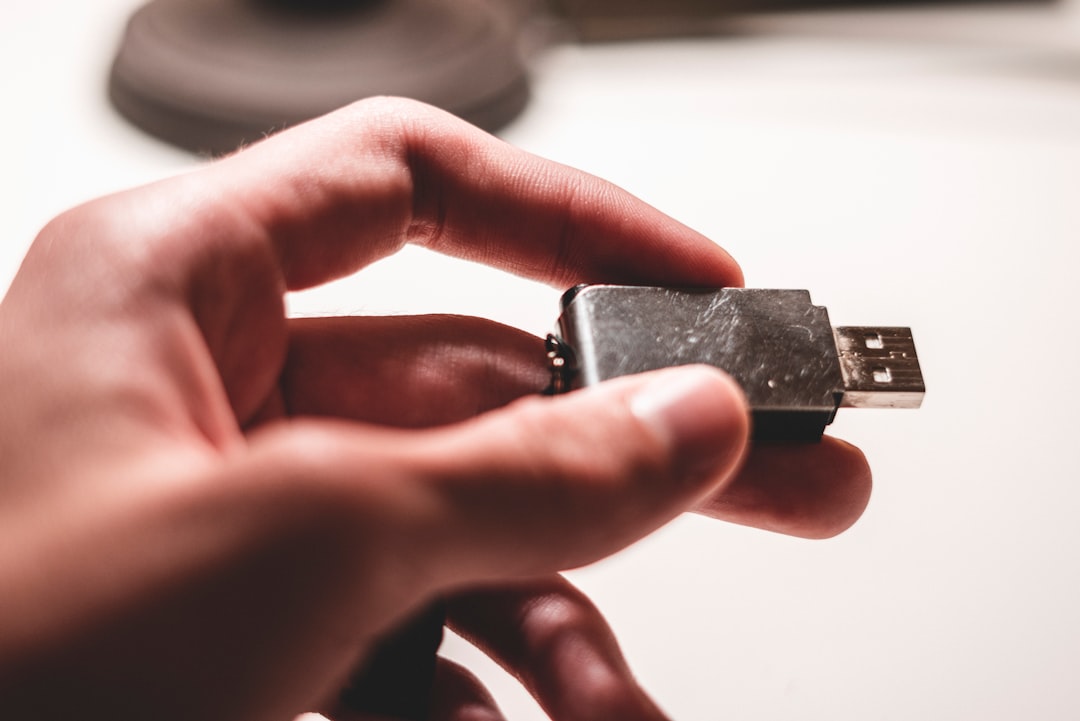
A live USB contains a bootable Linux environment that can run directly from removable media without installing Linux to the internal drive. Canonical’s current Ubuntu 26.04 LTS documentation explicitly supports trying Ubuntu from USB without making permanent changes to the computer.
Official reference: Ubuntu Desktop: Try Ubuntu Desktop.
When a Live USB Is Useful
- Windows will not start but the internal drive may still be readable.
- You need to copy documents, photos or other user files before repair work.
- You want to test Wi-Fi, display, memory or general system stability outside Windows.
- You suspect a Windows driver or software problem.
- You need a recovery environment with disk and filesystem tools.
Create the USB First
If you do not already have a bootable Linux drive, follow How to Create a Bootable Linux USB Drive With Rufus or balenaEtcher. Use an official Linux image and verify the target USB carefully because imaging normally erases that USB drive.
Boot the Broken PC From USB
- Connect the Linux USB.
- Connect a separate external drive if you intend to copy recovered files.
- Restart the computer.
- Open the manufacturer’s temporary boot menu, commonly with F12, Esc, F2 or another model-specific key.
- Select the USB device.
- Choose the live or Try option rather than Install.
Ubuntu’s current documentation notes that F12 is common, with Escape and F2 used on some systems.
Do Not Click Install by Accident
If the objective is rescue or diagnosis, stay in the live environment. An operating-system installation can repartition or overwrite the internal drive, which is exactly what you are trying to avoid before important files are secured.
Find the Windows Drive
In a graphical Ubuntu live session, open the file manager and look for internal disks or Windows volumes in the sidebar. Drive labels and capacities can help identify the correct partition.
If the Windows volume mounts successfully, browse to the user folders and locate Documents, Desktop, Pictures, Videos and other data you need.
Copy Files to a Separate Healthy Drive
Copy recovered files to another physical drive, not back onto the questionable Windows disk. This protects the source from unnecessary writes and gives you an independent copy before repair work continues.
After copying, open a few important files from the destination drive to verify that the data is actually readable.
BitLocker Can Block Access
If the Windows drive is encrypted with BitLocker or device encryption, a Linux live environment may not simply open the files without the required recovery information and compatible tools. Do not format the drive because it appears unreadable.
Check the Windows account, Microsoft account or organization’s recovery process for the BitLocker recovery key before attempting deeper recovery.
If the Drive Does Not Appear at All
If the internal SSD or hard drive is missing from Linux as well as from the PC firmware, the problem may be hardware-level rather than Windows corruption. Check the firmware storage list and physical connection if the PC design allows safe access.
A drive that disappears intermittently, produces I/O errors or makes abnormal mechanical noises should not be subjected to repeated scans when the data is valuable.
Use the Live Session to Separate Windows Problems From Hardware Problems
A live Linux session is useful evidence. If the computer runs for hours in Linux without freezing while Windows crashes quickly, Windows software, drivers or the Windows filesystem become stronger suspects. If the computer also freezes or shuts down in Linux, hardware, cooling, power or firmware becomes more suspicious.
Use How to Fix a Windows PC That Keeps Freezing for the broader diagnostic sequence.
Check Memory
Some recovery distributions include memory-test options. SystemRescue’s current quick-start documentation notes that additional utilities such as memtest may be available from the boot media. Memory errors can cause crashes, corrupted archives and unreliable file copies.
Official reference: SystemRescue Quick Start Guide.
SystemRescue vs Ubuntu Live
| Need | Ubuntu Live | SystemRescue |
|---|---|---|
| Easy graphical desktop | Excellent | More technical |
| Copy ordinary files | Excellent | Excellent |
| Specialized recovery tools | Basic | Strong |
| Beginner friendliness | Better | Advanced |
| Filesystem and repair toolkit | General-purpose | Purpose-built |
For straightforward file rescue, Ubuntu’s live desktop is easier. SystemRescue is better when you already understand partitions, filesystems and recovery utilities.
Do Not Run Repair Tools Before Copying Critical Files
Filesystem-repair and partition tools can modify disk structures. If the files matter, recover or image the data first whenever possible. A repair that makes the volume mountable is useful only if it does not destroy the data you were trying to save.
Avoid Writing to a Failing Source Drive
When a drive is unstable, minimize writes. Save recovered files, logs and disk images to another physical device. Do not install software or create a new Windows installation on the source drive until the recovery decision is complete.
What About Deleted Files?
A live USB can host recovery tools, but deleted-file recovery is a different problem from copying existing readable files. Stop using the source drive as soon as possible because new writes can overwrite deleted data.
For Windows’ own recovery utility on a healthy enough source drive, see How to Recover Deleted Files in Windows 11 With Windows File Recovery.
After Your Files Are Safe
Once important files are backed up, you can troubleshoot more aggressively: Windows recovery, Startup Repair, system-file checks, storage diagnostics, driver repair or a clean reinstall. The correct next step depends on the evidence you found in the live session.
Linux Live USB Recovery Checklist
- Create a current bootable Linux USB.
- Have a separate healthy destination drive ready.
- Boot the PC from USB and choose the live or Try option.
- Confirm the internal Windows drive appears.
- Copy the most important files first.
- Verify files from the destination drive.
- Check whether the PC remains stable outside Windows.
- Do not run destructive repairs until critical data is safe.
- Stop if the drive shows signs of physical failure.
- Only then move on to Windows repair or reinstall work.
Bottom Line
A Linux live USB is one of the safest first tools to use when Windows will not boot and you need to protect files before repair. Start from a temporary live environment, copy important data to another drive, and use the session to learn whether the problem follows the hardware or appears limited to Windows. When a drive itself is failing, prioritize data preservation over repeated troubleshooting.