Some links on PCFix411 may earn a commission from GearReady, software partners, or Amazon Associates at no extra cost to you.
A new Wi-Fi router can be online in a few minutes, but a good home-network setup takes a little more thought. The goal is not simply to make the Wi-Fi name appear on your phone. You also want secure administration, current firmware, strong wireless encryption, sensible placement, a guest network, and a configuration you can troubleshoot later.
This guide walks through the setup in a controlled order so you can separate an internet-service problem from a router problem and a Wi-Fi coverage problem.
Quick Answer: Best Setup Order
- Record your current ISP and modem/gateway information.
- Place the router in a central, open location if possible.
- Connect the modem or ONT to the router’s WAN/Internet port.
- Power-cycle the modem/ONT if required by the ISP.
- Log in to the router locally.
- Change the administrator password.
- Install current firmware.
- Create a unique Wi-Fi name and strong Wi-Fi password.
- Use WPA3 Personal when all important devices support it, otherwise WPA2/WPA3 transition mode or WPA2 Personal as appropriate.
- Disable unnecessary remote-management and convenience features.
- Create a guest network.
- Test wired speed first, then Wi-Fi coverage and performance.
1. Know What Equipment You Already Have
Your internet connection may use a cable modem, fiber ONT, DSL gateway, cellular gateway or an ISP-provided modem/router combination. Before unplugging anything, photograph the current cable layout and record any settings your ISP requires.
If the ISP device is already a router, adding another router can create a double-NAT configuration. That may still work for ordinary browsing, but it can complicate gaming, VPNs, port forwarding and some smart-home systems.
2. Router vs Modem vs ONT
The modem or ONT connects your home to the internet service. The router creates the local network, assigns local IP addresses and routes traffic between your devices and the internet. A wireless router also provides Wi-Fi.
Some ISP gateways combine all of those functions in one box. If you replace only the Wi-Fi portion with your own router or mesh system, decide whether the ISP gateway should remain in router mode or be placed in bridge/passthrough mode according to the ISP’s documentation.
3. Place the Router Before You Configure It
Wi-Fi performance depends heavily on placement. The FCC recommends a central location for better home coverage and notes that 5 GHz can provide higher speeds but generally covers a shorter range than 2.4 GHz.
Avoid putting the router inside a metal cabinet, behind a television, on the floor, next to a microwave, or at one far corner of the house simply because that is where the modem was originally installed.
4. Connect the WAN Port Correctly
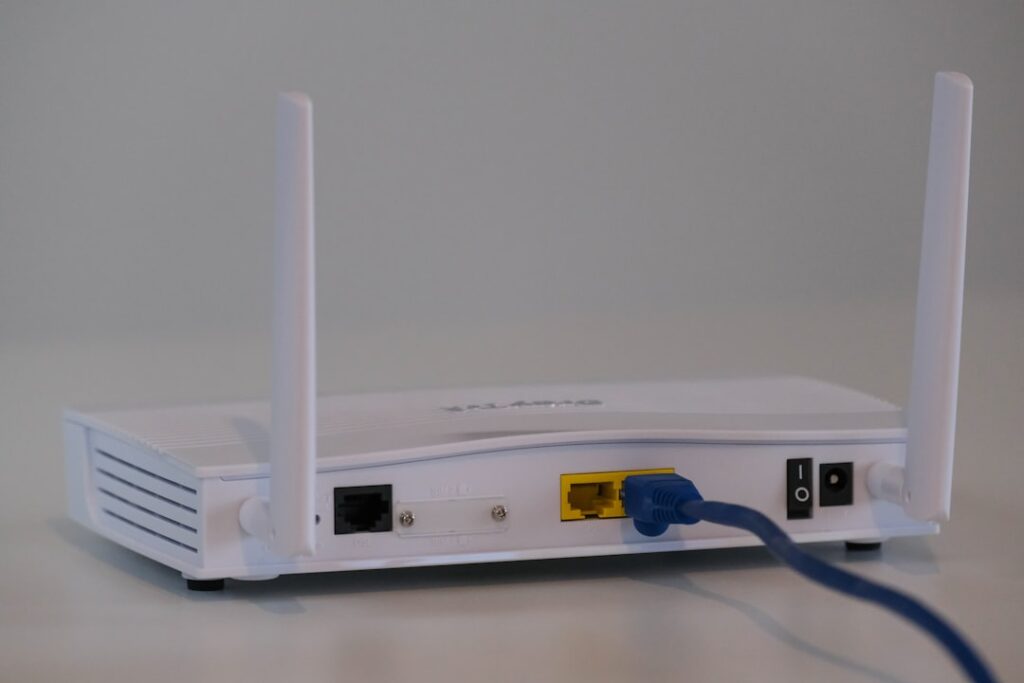
Run Ethernet from the modem, ONT or ISP gateway to the router’s port labeled WAN, Internet or a globe icon. Do not plug the incoming internet cable into an ordinary LAN port unless the router manufacturer specifically tells you to.
If the router does not receive an internet address, restart the modem/ONT and router in the order recommended by your ISP. Some cable providers temporarily associate the modem with the previous router’s MAC address.
5. Use Ethernet for Initial Setup When Possible
A laptop connected directly to a LAN port gives you a stable management connection while changing Wi-Fi settings. If you configure over Wi-Fi, changing the SSID or password will disconnect you and you will need to reconnect using the new information.
6. Change the Router Administrator Password
The router admin password controls the management interface. It is different from the Wi-Fi password that phones and laptops use to join the network.
The FTC recommends changing default router credentials to unique values. Use a strong administrator password that is not reused for another account, and store it in a password manager.
7. Use a Neutral Wi-Fi Network Name
Choose a network name, or SSID, that is recognizable to you but does not reveal your surname, street address, apartment number or router model. A creative name is fine; personally identifying information is unnecessary.
If you replace an old router and reuse the exact same SSID and password, many devices may reconnect automatically. That is convenient, but a clean new SSID can be useful when you want to intentionally audit which devices are allowed back onto the network.
8. Use WPA3 or WPA2 Encryption
The FTC recommends WPA3 Personal when available and WPA2 Personal as the older secure alternative. WEP and original WPA are outdated and should not be used.
Many current routers offer a WPA2/WPA3 transition mode for homes that still have older devices. If a legacy printer or smart-home device will not connect to WPA3, verify its support before weakening the entire network.
9. Make the Wi-Fi Password Strong
Use a long, unique password or passphrase that is not reused for email, banking or other services. Avoid phone numbers, addresses and predictable phrases.
Changing the Wi-Fi password disconnects existing clients. That can be useful if you are taking control of an old network and want to remove unknown or former devices.
10. Update the Router Firmware
Check for firmware updates immediately after setup. Router updates often include security fixes, stability improvements and compatibility changes.
The FTC recommends keeping router software current. If the router supports automatic security updates from the manufacturer, enable them unless your environment requires controlled manual change management.
11. Disable Remote Management Unless You Need It
Remote administration exposes the router’s management interface beyond the local network. Most home users do not need to log into their router from the public internet.
The FTC recommends turning remote management off when it is not needed. If you genuinely require remote access, use the router vendor’s supported secure method and strong authentication rather than opening a generic management port.
12. Review WPS
Wi-Fi Protected Setup can make device enrollment easier, but convenience features increase attack surface. The FTC recommends disabling WPS. If your router still relies on WPS for a specific device, understand the tradeoff and disable the feature after setup when possible.
13. Review UPnP Instead of Leaving It On Automatically
Universal Plug and Play lets applications and devices automatically request network mappings. It can be convenient for gaming consoles, media servers and smart devices, but the FTC and CISA both caution that unnecessary UPnP can weaken network security.
If everything you use works without it, leave UPnP disabled. If a legitimate application requires it, enable it deliberately and keep the router firmware current.
14. Turn On the Router Firewall
Most consumer routers include a stateful firewall and enable it by default. Verify that the firewall has not been disabled during troubleshooting or by an old configuration import.
Do not place an ordinary home PC in a DMZ simply to fix a game or application. A DMZ setting can expose that device much more directly to the internet.
15. Create a Guest Network
The FTC recommends using a separate guest network. Guests can connect without receiving your primary Wi-Fi password, and many routers can isolate guest devices from PCs, printers and storage on the main network.
A guest network is also useful for less-trusted smart-home equipment when the router does not offer more advanced IoT segmentation.
16. Consider a Separate IoT Network
Cameras, plugs, TVs, speakers and appliances may receive updates less consistently than laptops and phones. If your router or mesh system supports a dedicated IoT network or client isolation, separating those devices can reduce the impact of one compromised device.
Do not create extra networks merely for complexity. The goal is understandable segmentation, not a configuration nobody in the house can maintain.
17. Understand 2.4 GHz, 5 GHz and 6 GHz
| Band | Typical Strength | Typical Tradeoff |
|---|---|---|
| 2.4 GHz | Longer range and strong legacy-device support | More congestion and lower peak speeds |
| 5 GHz | High performance for most current devices | Shorter range through walls than 2.4 GHz |
| 6 GHz | Additional clean spectrum for compatible Wi-Fi 6E/7 devices | Requires compatible router and clients and has shorter effective range through obstacles |
Many modern routers combine bands under one SSID and steer clients automatically. Split SSIDs are useful mainly when troubleshooting a device or intentionally controlling which band it uses.
18. Let Automatic Channel Selection Work First
Modern routers can scan the local RF environment and select channels automatically. Start there. Manually forcing a channel based on an old YouTube tutorial may make performance worse in a neighborhood with changing interference.
If Wi-Fi remains slow, use PCFix411’s How to Fix Slow Wi-Fi at Home for a controlled troubleshooting sequence.
19. Test Ethernet Before Blaming Wi-Fi
Connect a capable laptop or desktop directly to the router with Ethernet and run a speed test. If wired performance is already far below the ISP plan, the problem is upstream of Wi-Fi—possibly the modem, ONT, ISP, Ethernet link or router WAN configuration.
If wired speed is good but wireless speed is poor, then investigate signal strength, channel congestion, client capability and router placement.
20. Match Expectations to the Client Device
A new Wi-Fi 7 router does not turn an old Wi-Fi 5 laptop into a Wi-Fi 7 client. The connection uses capabilities supported by both sides.
Before replacing the router because one device is slow, test several modern devices in the same location.
21. Mesh Wi-Fi Is for Coverage Problems
If the router is centrally placed and distant rooms still have weak signal, a mesh system can provide multiple coordinated access points. A basic extender can also help in some homes but is less elegant and may reduce throughput depending on how it relays traffic.
PCFix411 compares the options in Wi-Fi Extender vs Mesh Wi-Fi.
22. Ethernet Backhaul Can Improve Mesh Performance
If the home has Ethernet cabling, connecting mesh nodes with wired backhaul can preserve wireless capacity for client devices and improve consistency. Powerline or MoCA may also be options in some buildings, but their performance depends on the home’s wiring.
23. Do Not Buy a Router Based Only on the Biggest Number
Marketing labels such as AX3000, BE9300 or higher describe combined theoretical capabilities rather than the speed one device will actually receive. Port speeds, channel width, client support, radio conditions and internet service all matter.
Use PCFix411’s Router Buying Guide before replacing working hardware.
24. Back Up the Router Configuration
If the router supports exporting a configuration file, save one after the network is stable. Store it somewhere secure because configuration backups can contain network details.
After a major firmware upgrade or security incident, manually rebuilding key settings can sometimes be safer than restoring a very old configuration file.
25. Keep a Simple Network Record
Write down the router model, admin URL, firmware version, ISP device model, SSID names, guest network, important wired devices and any deliberate custom settings. Do not write passwords in an unsecured note.
A simple network map makes future troubleshooting much faster, especially when someone changes equipment months later.
Setup Checklist
- Document existing modem/ONT/gateway connections.
- Place the router centrally.
- Connect WAN correctly.
- Change the admin password.
- Update firmware.
- Choose a neutral SSID.
- Enable WPA3 or WPA2/WPA3 as appropriate.
- Set a strong Wi-Fi password.
- Disable unnecessary remote management, WPS and UPnP.
- Verify the firewall.
- Create a guest network.
- Test Ethernet speed.
- Test Wi-Fi in several rooms.
- Save the stable configuration and network notes.
Bottom Line
A secure router setup is mostly about deliberate defaults: current firmware, unique administrator credentials, WPA3 or WPA2 encryption, a strong Wi-Fi password, safe management settings, guest isolation and good physical placement. Test the internet connection over Ethernet before troubleshooting wireless performance, then improve Wi-Fi coverage with placement, bands, mesh or wired backhaul rather than randomly changing every advanced setting.