Some links on PCFix411 may earn a commission from GearReady, software partners, or Amazon Associates at no extra cost to you.
Slow Wi-Fi does not always mean you need a faster internet plan. The problem may be weak signal, poor router placement, interference, overloaded hardware, a bad Ethernet connection or an issue with the internet service itself.
The best way to fix it is to separate internet speed from Wi-Fi performance and test one layer at a time.
1. Start with a wired speed test
If possible, connect a laptop or desktop directly to the router with Ethernet and run a speed test. This gives you a baseline for the internet connection before Wi-Fi is involved.
If the wired connection is also much slower than expected, the problem may be the modem, router WAN connection, Ethernet cable, service plan or ISP. If wired performance is good but Wi-Fi is poor, focus on the wireless network.
2. Test close to the router
Stand in the same room as the router and test again. If Wi-Fi is fast nearby but slow in another part of the home, the issue is probably coverage rather than internet speed.
Walls, floors, metal appliances, mirrors and long distances can weaken wireless signals. A router placed inside a cabinet, behind a television or at one end of a large home may create unnecessary dead zones.
3. Improve router placement
For most homes, place the router in a central, elevated and open location. Keep it away from large metal objects, thick concrete walls and equipment that may cause interference.
Moving the router a few feet can sometimes improve coverage more than changing settings.
4. Restart the modem and router correctly
A restart can clear temporary connection problems, but do it in order. Power off the modem and router, wait about 30 seconds, power the modem back on first, wait for it to reconnect, then power on the router.
If you have an all-in-one gateway from your internet provider, a single restart may be enough.
5. Compare 2.4 GHz, 5 GHz and 6 GHz
Different Wi-Fi bands trade range for speed. In general:
- 2.4 GHz reaches farther and penetrates walls better, but it is usually slower and more crowded.
- 5 GHz is typically faster at shorter and medium distances.
- 6 GHz, when supported by both router and device, can provide more clean spectrum but has shorter practical range and weaker wall penetration.
If your router combines bands under one network name, it may automatically steer devices. If you use separate names, test each band manually.
6. Check for interference and crowded channels
Nearby networks can compete for the same wireless channels, especially in apartments and dense neighborhoods. Bluetooth devices, older cordless equipment and some household electronics can also contribute to interference.
Many modern routers choose channels automatically. If yours consistently performs poorly, check its wireless settings and try a different channel or allow the router to rescan automatically.
7. Update router firmware
Router firmware updates can improve reliability, security and device compatibility. Sign in to the router administration interface or use the manufacturer’s app and check for updates.
Do not interrupt power while firmware is installing.
8. Check how many devices are using the connection
Streaming, cloud backups, game downloads, security cameras and large software updates can consume significant bandwidth. One device running a large download can make every other device feel slow.
Check the router’s connected-device list and pause large transfers while testing. If performance improves, the problem may be congestion rather than signal strength.
9. Test more than one device
If only one laptop or phone is slow, the router may not be the problem. Forget and reconnect to the Wi-Fi network, update the device, restart it and check its wireless adapter or power-saving settings.
If every device is slow in the same location, focus on the router, coverage or internet connection.
10. Replace damaged or outdated Ethernet cables
The cable between your modem and router can limit performance if it is damaged or negotiating at a lower speed. Reseat both ends and test another known-good cable if the wired baseline is unexpectedly slow.
11. Know when a Wi-Fi extender is enough
A Wi-Fi extender can help cover one isolated weak area, especially when the existing router still performs well elsewhere. The tradeoff is that extenders can introduce additional complexity and may reduce throughput depending on how they connect back to the router.
For a larger home with multiple weak zones, a mesh Wi-Fi system may provide more consistent roaming and coverage. Our planned PCFix411 comparison on Wi-Fi extenders vs mesh Wi-Fi will go deeper into that decision.
12. Consider whether the router is simply too old
Older routers can become a bottleneck when a household adds faster internet service, many smart-home devices, newer laptops and higher-bandwidth streaming. A replacement makes the most sense when the current router lacks the capacity, coverage or standards needed for your actual devices.
Do not replace hardware until you have confirmed that placement, interference and the wired internet connection are not the real problem.
13. Check for an ISP issue
If wired and wireless speeds are both poor, check the provider’s outage information and test at different times of day. Repeated drops, high latency or large speed swings can indicate a line or service issue.
Document your wired test results before contacting support. That makes it easier to show that the problem exists before Wi-Fi enters the picture.
Quick slow Wi-Fi checklist
- Run a wired speed test.
- Test Wi-Fi next to the router.
- Move the router to a central, open location.
- Restart modem and router.
- Compare available Wi-Fi bands.
- Check channels and interference.
- Update router firmware.
- Pause large downloads and cloud backups.
- Test multiple devices.
- Check Ethernet cables.
- Use an extender or mesh only when coverage is the confirmed problem.
- Replace the router when age or capacity is clearly the bottleneck.
- Contact the ISP when wired performance is also poor.
Bottom line
The fastest way to fix slow Wi-Fi is to identify whether the problem is your internet connection, your wireless signal or one specific device. Test wired first, test close to the router second, and only then spend money on new networking hardware.
For more practical networking guidance, browse PCFix411 Networking, Cloud & Security.
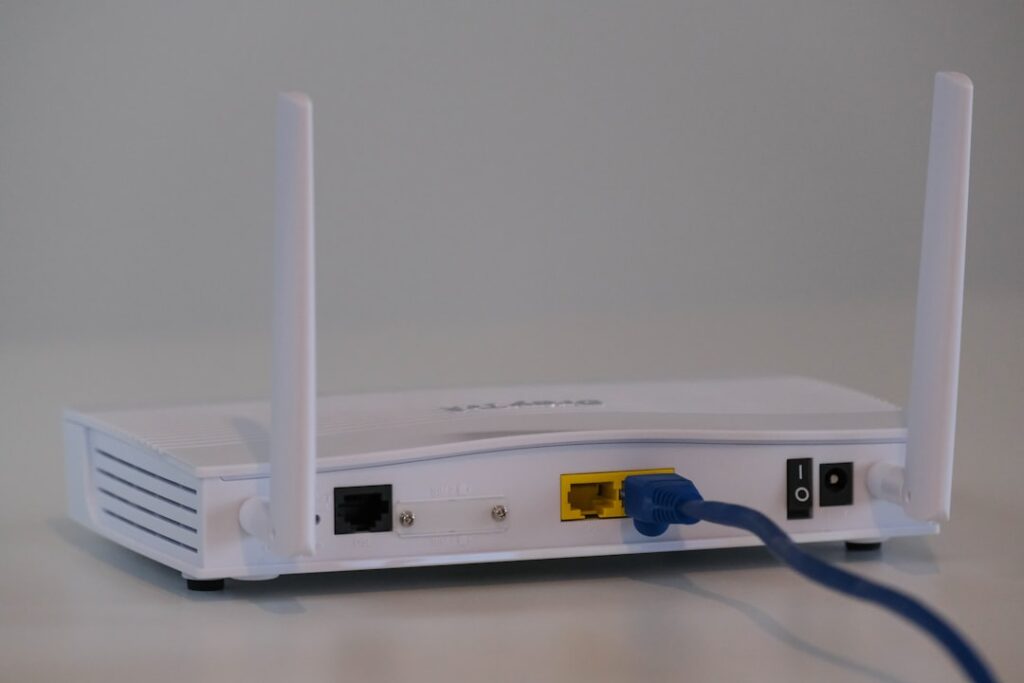
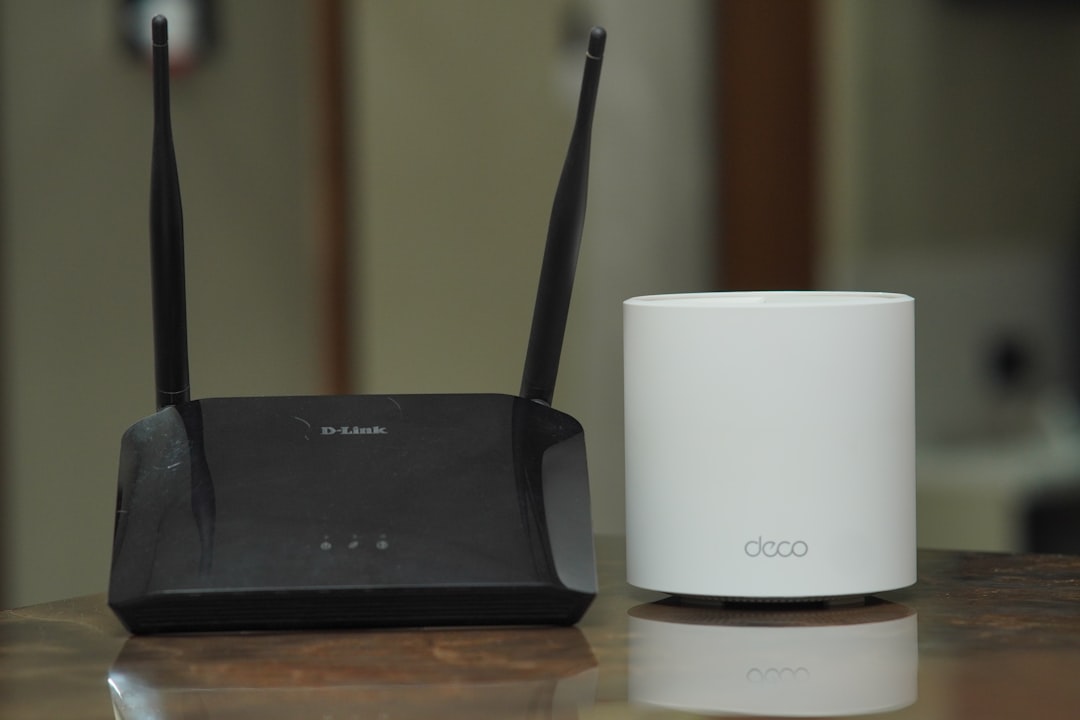
Featured photo: Compare Fibre / Unsplash. In-article photo: TechieTech Tech / Unsplash.