Some links on PCFix411 may earn a commission from GearReady, software partners, or Amazon Associates at no extra cost to you.
Google Maps can do much more than provide turn-by-turn directions. It can help you search for businesses, compare routes, check traffic, plan walking or transit trips, save places, download offline maps and share a location when appropriate.
This 2026 guide focuses on the features that are most useful in everyday travel while also covering privacy and safer driving habits.
1. Search for a Place or Address
Open Google Maps and use the search box to enter an address, business name, landmark or category such as coffee, pharmacy or gas station. Review the result carefully before starting navigation, especially when several businesses have similar names.
2. Check the Place Details Before You Go
Business listings may include hours, phone numbers, photos, reviews and other details, but listings can be outdated. For important appointments, verify critical information with the business directly.
3. Get Directions
Select a destination and tap Directions. Google Maps can provide route options for supported travel modes such as driving, walking, cycling and public transit. Availability varies by area.
Do not assume the first route is always the best. Compare travel time, distance, tolls and road conditions when alternatives are shown.
4. Use Live Traffic as a Planning Tool
Traffic overlays and route estimates can help you see congestion and delays. Traffic conditions change quickly, so treat the estimate as a planning aid rather than a guarantee.
5. Start Turn-by-Turn Navigation Safely
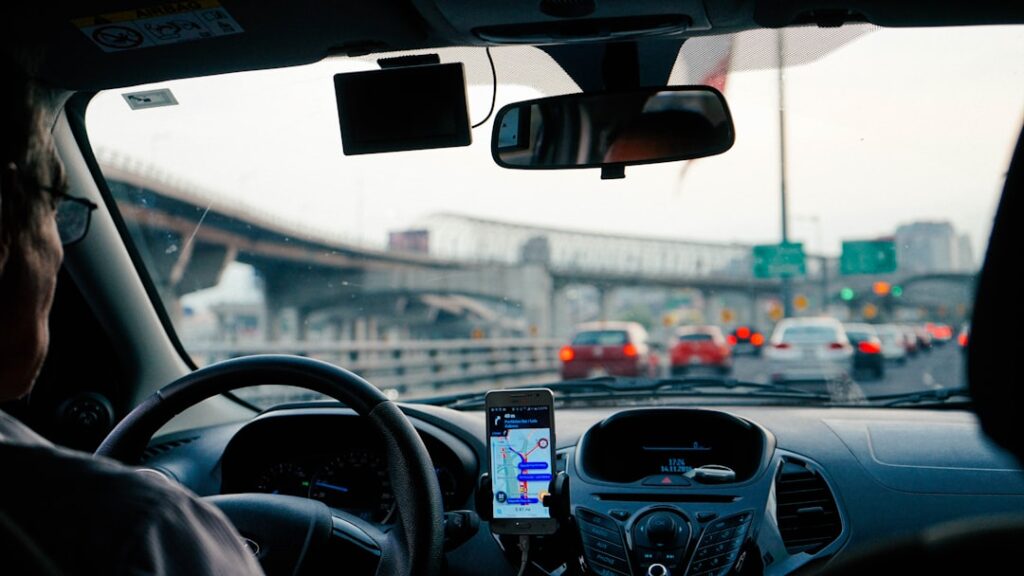
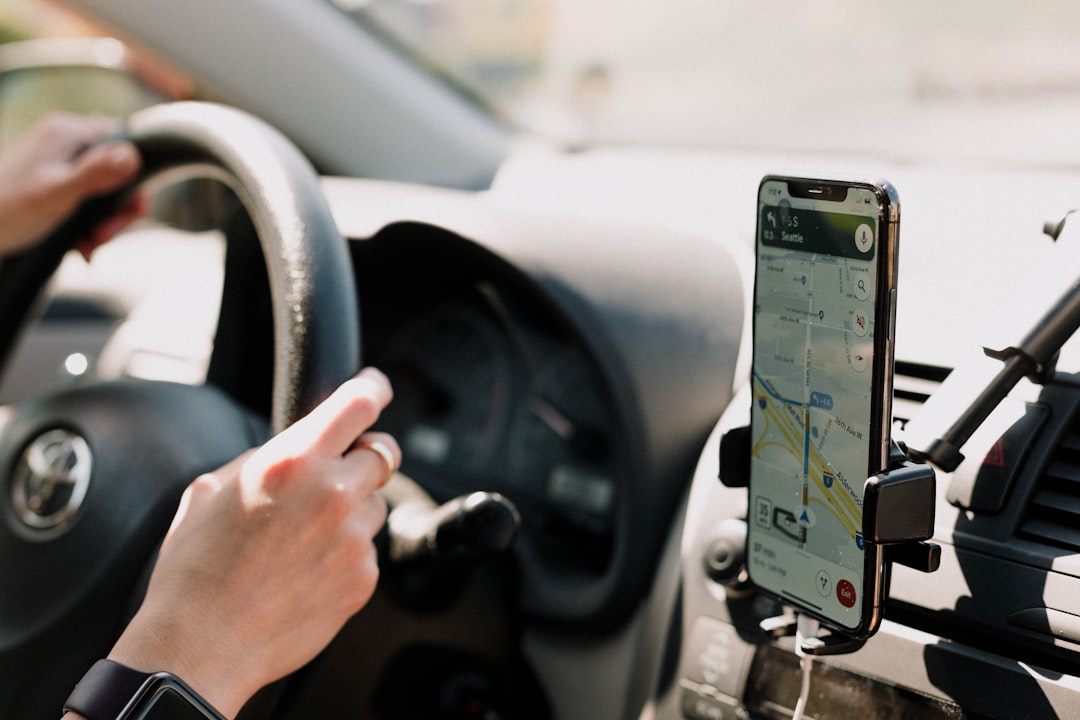
Set the destination and route before moving the vehicle. Mount the phone where legal and practical, use voice guidance and avoid typing while driving.
6. Add Stops Before the Trip
For multi-stop trips, use the route-planning controls to add destinations in advance. This is useful for errands, deliveries and road trips. Reorder stops when the app supports it to reduce unnecessary backtracking.
7. Download Offline Maps
If you expect weak mobile coverage, download the relevant map area before leaving. Offline maps can provide basic navigation in supported areas even when your data connection is poor.
Offline data does not include every live feature, so traffic and some business information may be limited without internet access.
8. Save Home, Work and Frequent Places Carefully
Saved locations make navigation faster, but they are sensitive personal data. Use them only if the convenience is worth the privacy tradeoff for your account.
9. Create Lists of Saved Places
You can save restaurants, attractions, hotels and other locations into lists for future trips. This is more organized than repeatedly searching for the same places.
10. Use Location Sharing Deliberately
Google Maps can share your location with selected people when you choose to enable the feature. Share only with people you trust, use an appropriate time limit and turn sharing off when it is no longer needed.
11. Review Timeline and Location-History Settings
Location-history and Timeline behavior depends on your Google Account settings and current product design. Review those controls if you do not want long-term location history stored.
Privacy settings can change, so use Google’s current account and Maps settings rather than relying on an old tutorial.
12. Use Walking Directions With Awareness
Walking routes are useful in unfamiliar areas, but always pay attention to signs, access restrictions, construction and your surroundings. A route on a map does not override real-world safety conditions.
13. Check Public Transit Options
Where supported, Google Maps can compare bus, train and other transit routes. Departure times may come from live or scheduled data depending on the transit agency.
14. Find Parking or Remember Where You Parked
In some versions and regions, Google Maps can help save a parking location or provide parking-related information. Use the feature before walking away from the car if you are in a large lot or unfamiliar area.
15. Share a Route Instead of Explaining It by Text
When meeting someone, sharing a destination or route link is often clearer than typing a long sequence of directions. Confirm the destination pin is correct before sending it.
16. Use Street View for Orientation
Street View can help you recognize building entrances, intersections and landmarks before arrival. Imagery may be older than current conditions, so use it for orientation rather than assuming every detail is unchanged.
17. Be Skeptical of Reviews and Photos
Reviews can provide useful context, but one highly positive or negative review should not determine a major decision. Look for patterns and recent information, and verify important facts elsewhere.
18. Fix a Wrong Destination Before Continuing
If navigation sends you somewhere that does not match the expected address, stop safely and verify the exact street number, city and business name. Do not keep following directions simply because the app is confident.
19. Improve Navigation Accuracy
If the blue location dot is consistently wrong, confirm that location services are enabled, the phone has a clear view of the sky when possible and Google Maps has the permissions required for the feature you are using.
20. Manage Mobile Data and Battery Use
Navigation can consume battery quickly because the display, GPS and mobile data may remain active. Start a long trip with enough charge and use an appropriate vehicle charger when practical.
Google Maps Beginner Checklist
- Verify the destination before starting.
- Compare route options, tolls and delays.
- Set the route before driving.
- Use voice guidance and avoid typing while moving.
- Download offline maps before entering weak-coverage areas.
- Review location sharing and history settings.
- Keep enough battery power for the full trip.
- Follow road signs and real-world conditions over the app.
Bottom Line
Google Maps is most useful when you combine route planning with common sense. Verify the destination, prepare the route before moving, download offline data when needed and review location-sharing settings periodically. Navigation apps are powerful tools, but the road, signs and current safety conditions always come first.
For current feature instructions, consult the official Google Maps Help Center.
Featured photography: Dan Gold / Unsplash. In-article photography: Priscilla Du Preez / Unsplash.