Some links on PCFix411 may earn a commission from GearReady, software partners, or Amazon Associates at no extra cost to you.
Instagram combines photo sharing, short-form video, Stories, direct messages and creator tools in one app. For a new user, the biggest challenge is not posting a photo; it is understanding how feeds, Reels, privacy controls and account security fit together.
This 2026 beginner guide covers the practical workflow without assuming you already know Instagram’s interface.
1. Create and Secure Your Account
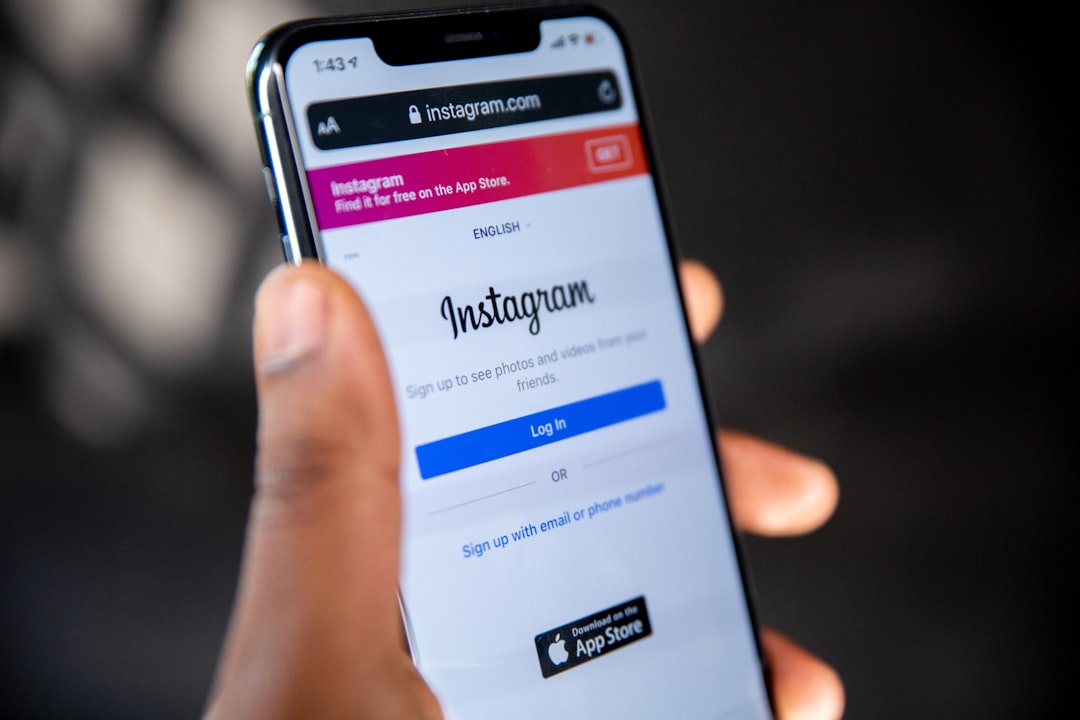
Install Instagram from the official Apple App Store or Google Play Store, then create an account with contact information you control. Use a strong unique password and enable the strongest available login-verification option in Accounts Center.
Do not share one-time login codes with anyone who contacts you through direct messages.
2. Set Up a Useful Profile
Add a recognizable profile photo, stable username, display name and concise bio. If you are building a public creator or business presence, keep branding consistent across platforms when practical.
Before adding personal details, review whether your account should be public or private.
3. Understand Feed, Explore and Reels
Your main feed shows content from accounts you follow plus recommendations. Explore helps surface additional topics and accounts, while Reels focuses on short-form vertical video. These areas are personalized, so what you see is not a neutral sample of Instagram as a whole.
Use search directly when you need a specific creator, place, product or topic rather than relying only on recommendations.
4. Publish a Photo or Video Post
Use the create control to choose media from your phone or capture new content. Before publishing, review the crop, caption, tagged people, location and audience-related options.
A clear caption should explain the post in plain language. Hashtags can help categorize content, but stuffing unrelated trending tags rarely improves quality.
5. Use Stories for Temporary Updates
Stories are designed for more temporary sharing and can include text, photos, video, links and interactive elements depending on account and region. Review Story audience controls if you do not want every follower to see every update.
6. Use Reels for Short-Form Video
Reels work best when the idea is easy to understand quickly. Record vertically, keep important text away from interface overlays and prioritize clear audio.
7. Send Direct Messages Carefully
Instagram Direct supports text, media and other sharing features. Treat unexpected links, investment pitches, verification requests and urgent money requests as suspicious until independently verified.
8. Review Privacy Controls
Use Instagram’s privacy settings to review account visibility, comments, mentions, tags, messages, activity status and other audience controls. Settings can change over time, so revisit them after major app updates.
9. Public vs Private Accounts
A private account limits who can follow and view your content. A public account is better suited to broad discovery. Choose based on your actual goal rather than leaving the default unchanged.
10. Control Comments, Mentions and Tags
Spam and unwanted attention can often be reduced by tightening who can comment, mention or tag you. Use blocking, restricting and reporting tools when necessary rather than continuing unproductive arguments.
11. Protect Against Account-Takeover Scams
Common scams imitate support staff, brands or friends and then ask you to click a link or send a login code. Open Instagram directly and check account alerts from inside the app instead of trusting an unsolicited message.
12. Review Logged-In Devices
Accounts Center and security tools can show login activity or connected sessions. Remove devices you no longer recognize or use, especially after signing in on a shared computer.
13. Be Careful With Third-Party Growth Tools
Follower-growth services, analytics tools and automation apps may request broad account access. Do not connect a service simply because it promises more followers or engagement.
14. Use Instagram for a Business or Creator Brand
Useful content usually solves one small problem at a time: a quick tutorial, before-and-after example, FAQ, product demonstration or behind-the-scenes process. Build repeatable content themes instead of chasing every trend.
PCFix411’s AI & Software and Tech Buying Guides hubs can help creators choose practical tools and production gear.
15. Verify Viral Claims Before Acting
Instagram is useful for discovery, not final verification. For technical, financial, health or news claims, confirm important details with authoritative sources before making decisions.
16. Manage Screen Time and Recommendations
If Instagram starts consuming more time than intended, use available time-management and recommendation controls. You can also improve the feed by deliberately following useful accounts and reducing interaction with topics you do not want.
Beginner Instagram Checklist
- Use a strong unique password and login verification.
- Choose public or private account visibility deliberately.
- Review comments, mentions, tags and messages.
- Check logged-in devices periodically.
- Never share one-time login codes.
- Record Reels vertically with clear audio.
- Verify important claims outside Instagram.
- Use block, restrict and report tools when needed.
Bottom Line
Instagram is easiest to manage when you separate three jobs: publishing, discovery and privacy. Learn the posting workflow, secure the account early and keep audience controls aligned with how public you actually want to be.
For current feature and privacy instructions, consult the official Instagram Help Center.
Featured photography: Brett Jordan / Unsplash. In-article photography: Solen Feyissa / Unsplash.